
Target period can only be added by admin user. So how can we create objective cycle?
More > Administration > Cycle Management
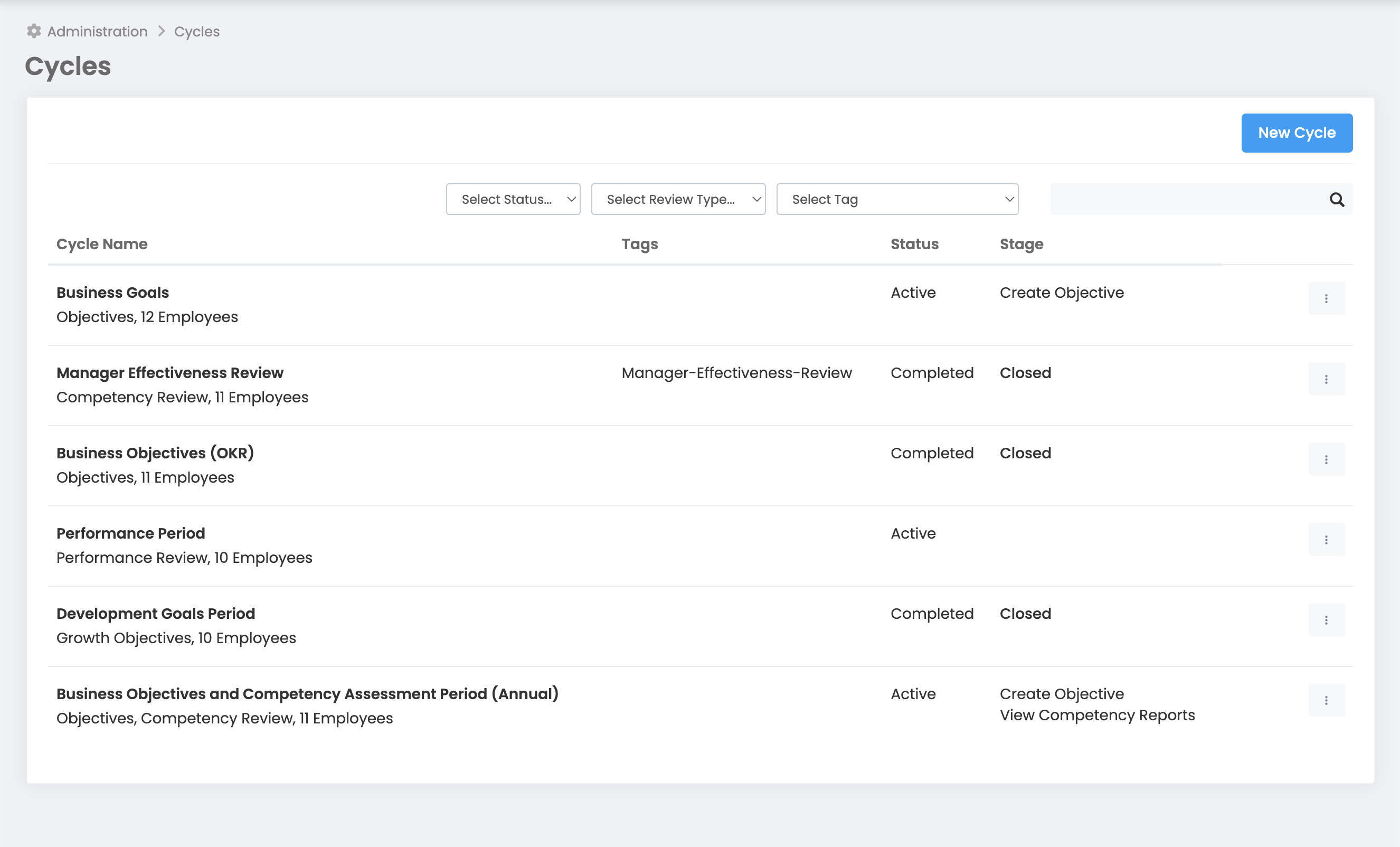
When you click on the Cycle Management button, you will see the window above. To create a new cycle, click on the "New Cycle" button in the upper right corner of the page and you will come to the "Create Cycle" screen below.
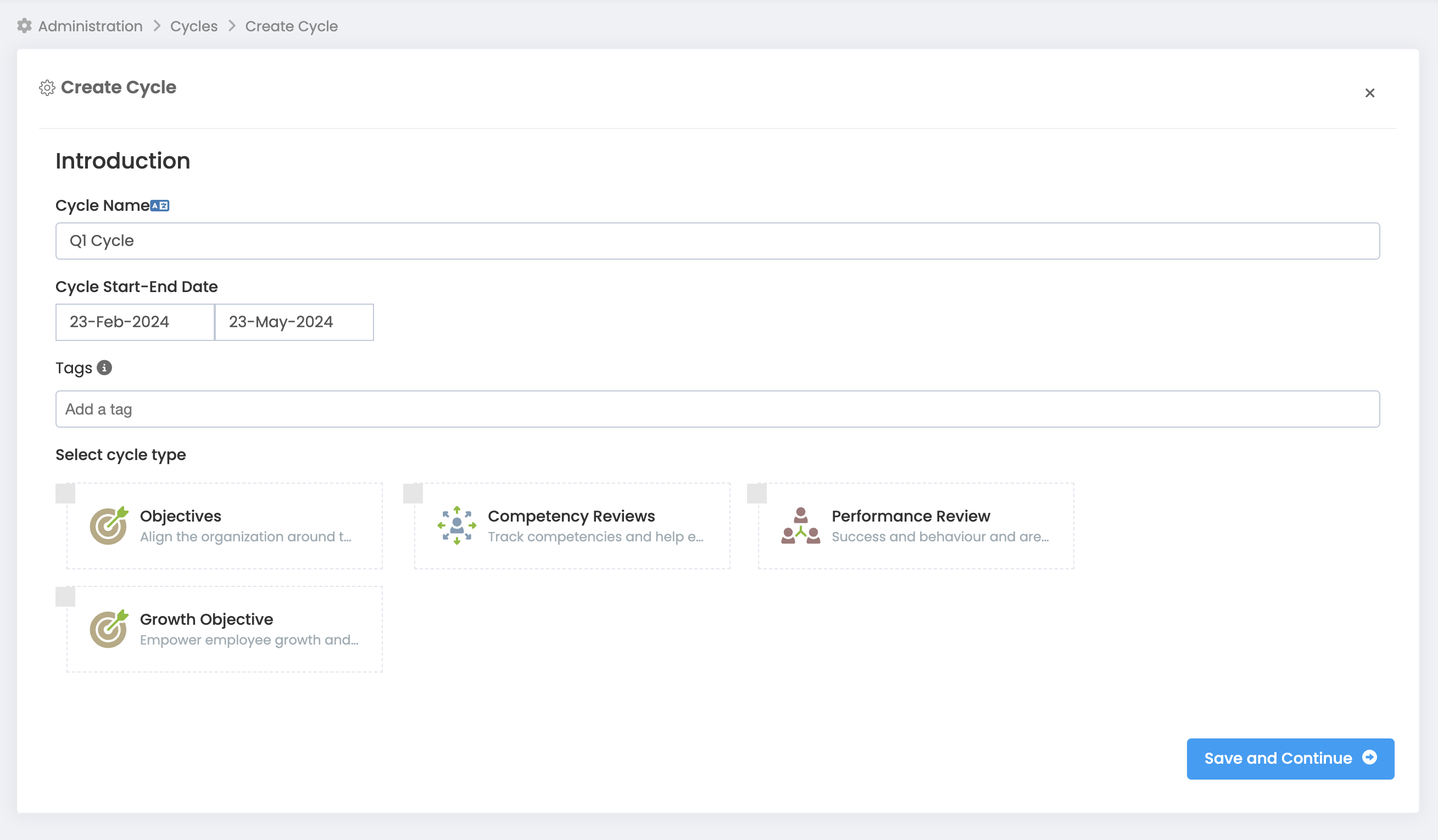
After entering the "Cycle Name" and "Cycle Start-End Date" information for the cycle you want to create, you can add a "label" if you wish, then specify the cycle type as "Objectives" and click the "Save and Continue" button to open the "Objective Cycle Setup" screen below.
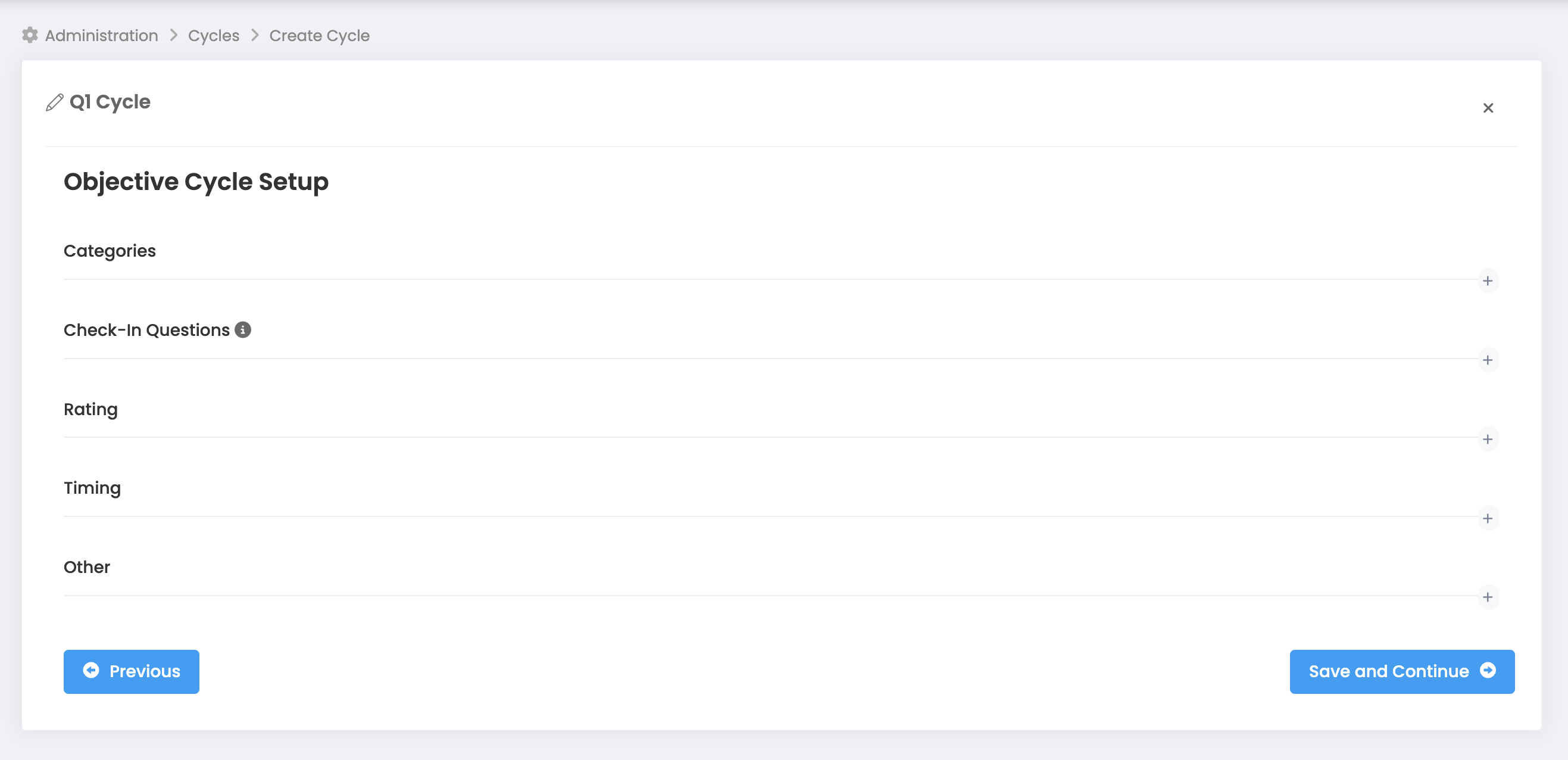
Categories: This option is a tool to try to provide structure to goals by aligning them around common themes or company priorities. For example, you can define strategic priorities in this area and enable employees to define which priority their goals are related to when creating goals. You can report how many objectives have been entered and progress percentages for these strategic priorities.
You can add categories for targets by clicking the "Add" button. Categories are selected by users when creating a target. If a category is defined, the user is forced to select a category when adding a target.
Check-in Questions: While the objective key result statuses are being updated (check-in), you can collect status information (progress and answers to the questions you will define below) from the target owner with the check-in questions you specify.
Rating: You can proceed by selecting the scoring type from the options "Disable Rating, Rating by progress, Manager Rating, Formula Rating". You can get more detailed information about rating by clicking this link.
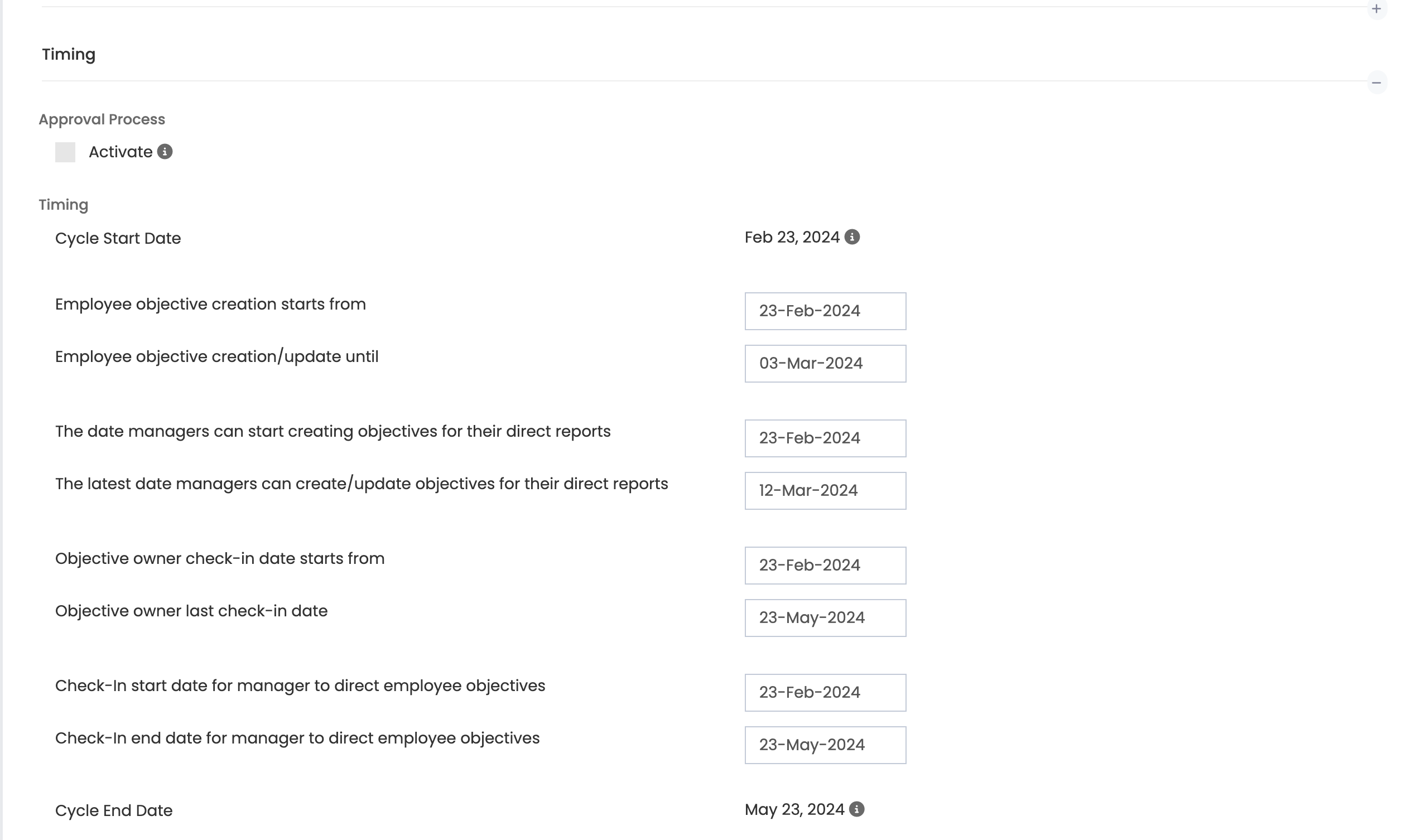
Timing:
Approval Process/Activate: This is the process in which each created objective is sent to the selected evaluators for approval. The process consists of 4 different statuses: draft, approval, rejected and approved. Only approved objectives are included in the process.
You can determine the cycle start/end date, objective creation/add/remove/change dates.
Other :
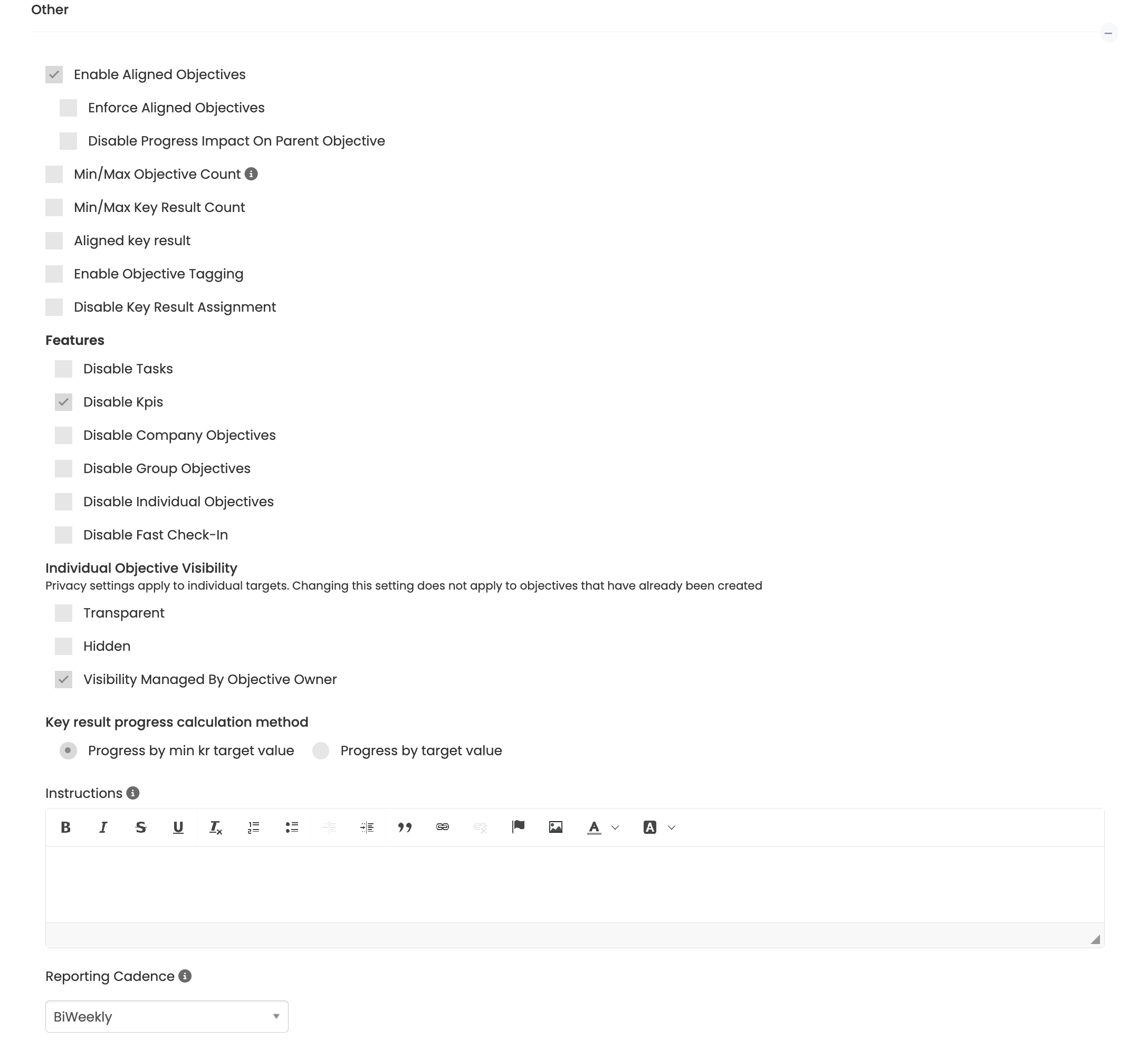
Reporting Cadence: Specifies the frequency of the report sent to term participants via e-mail on Fridays. You can continue by choosing one of the "Do Not Report, Once a Week, Every 2 Weeks, Monthly" options.
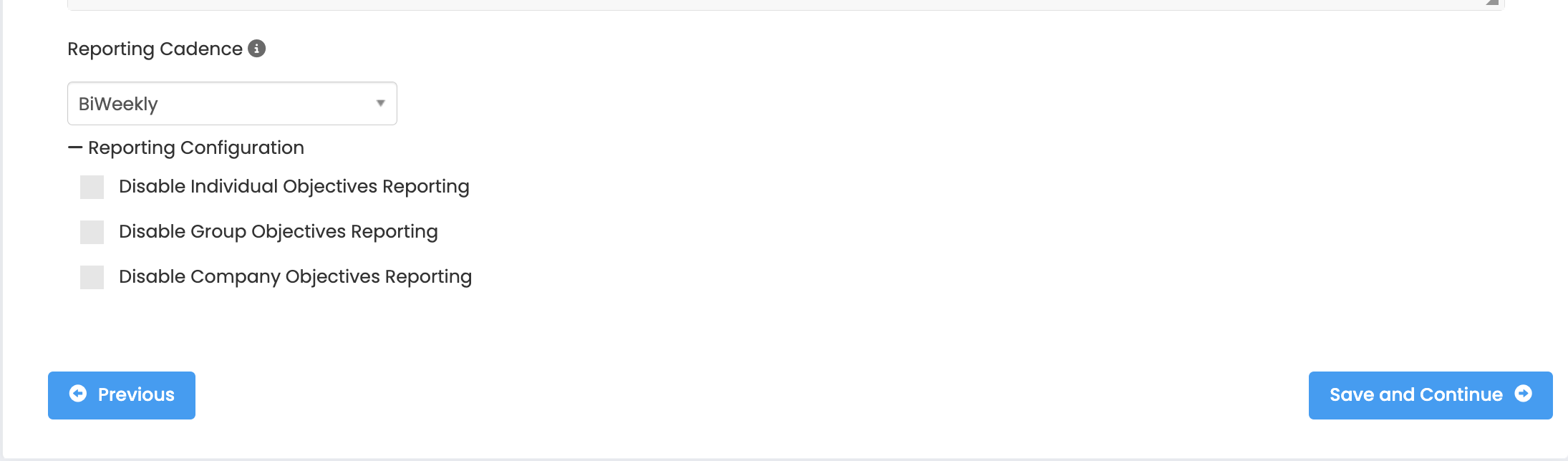
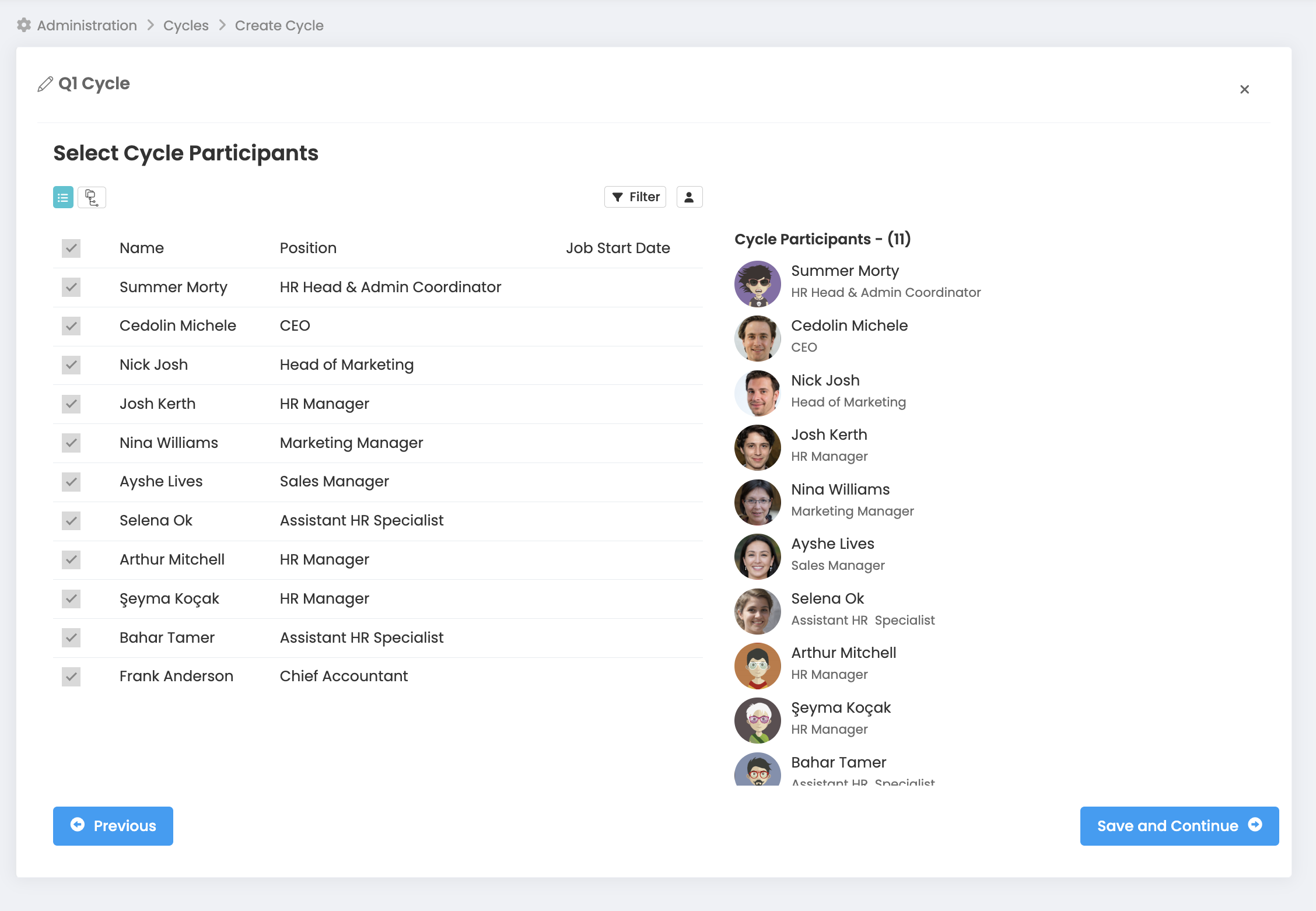
When you click the "Save and Continue" button, you will see the "Select Cycle Participants" screen below.
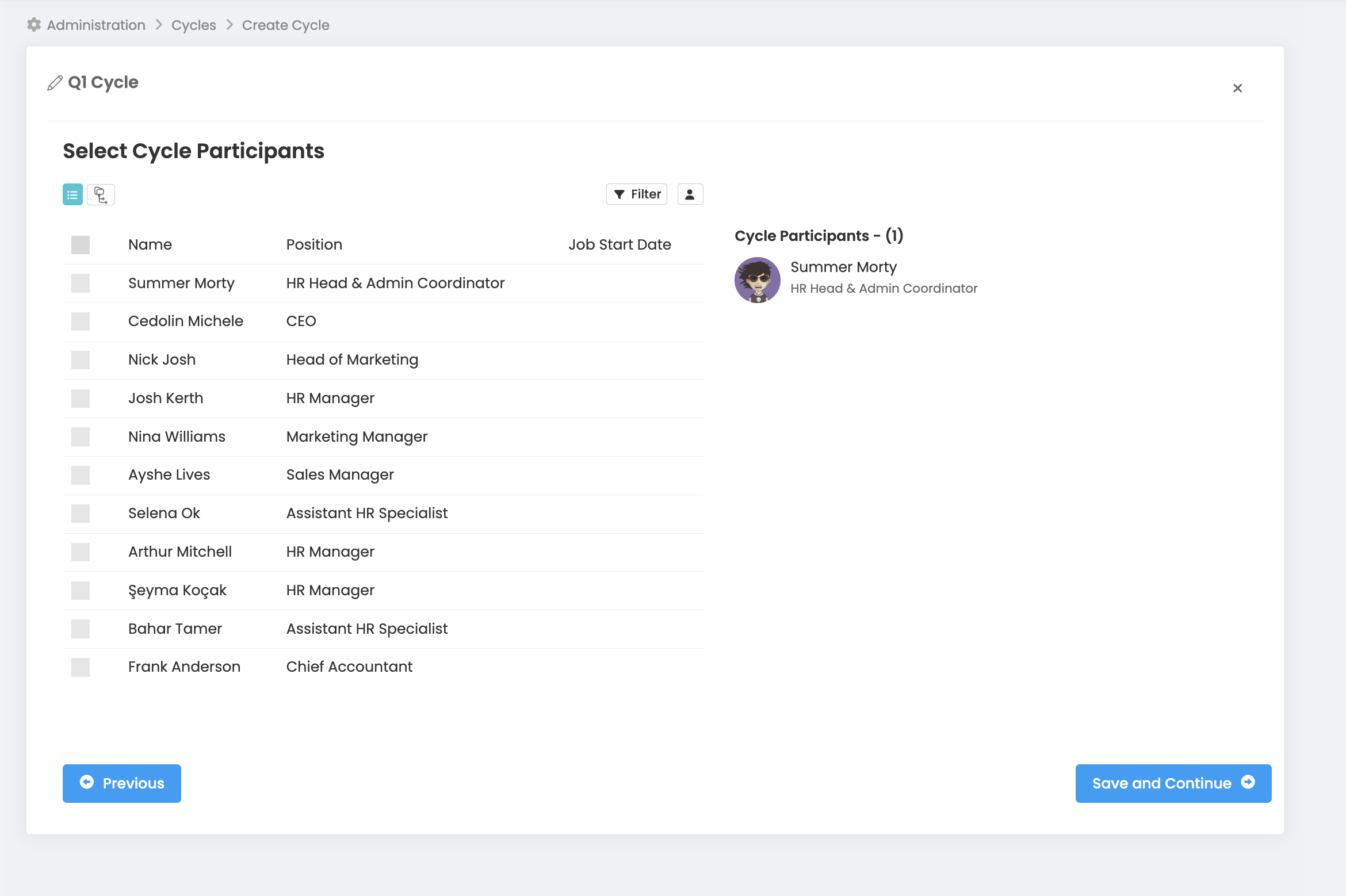
You can select participants by clicking on the boxes next to them. You will see the cycle participants you selected on the left side of the page. Afterwards, just click the "Save and Continue" button.
You can check the dates for the cycle you have selected on the screen below and change them by pressing the "Previous" button if you want to change them. If they are correct, you can continue by clicking the "Finalize" button.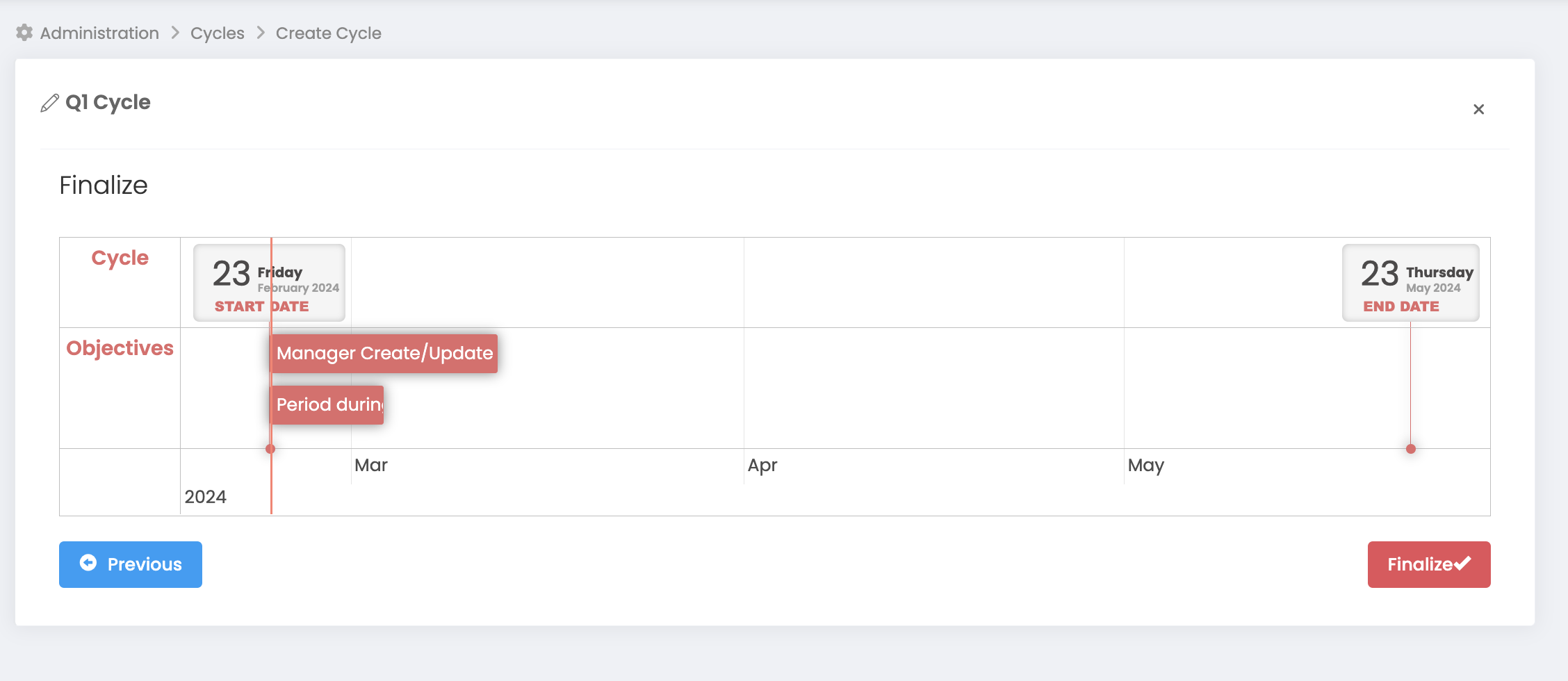
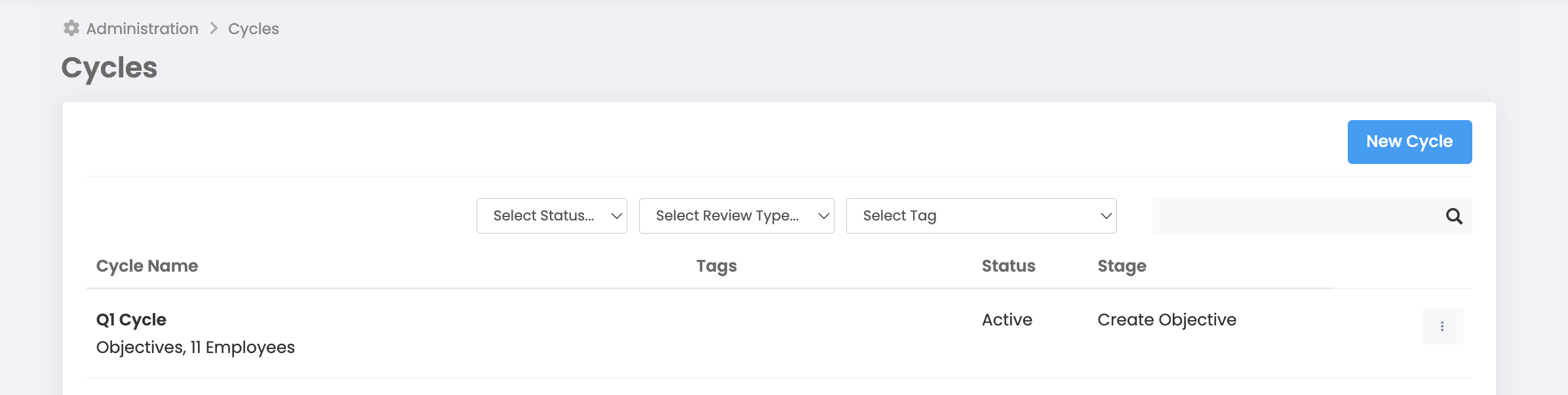
Afterwards, you will see the period you just created on the screen below.
1