To perform "Rating" while creating Objective Management;
More > Administration > Cycle Management
You can add a new cycle by clicking the "New Cycle" button in the upper right corner of the Cycle Management screen, then click the "Save and Continue" button and you will come to the "Objective Cycle Setup" screen below.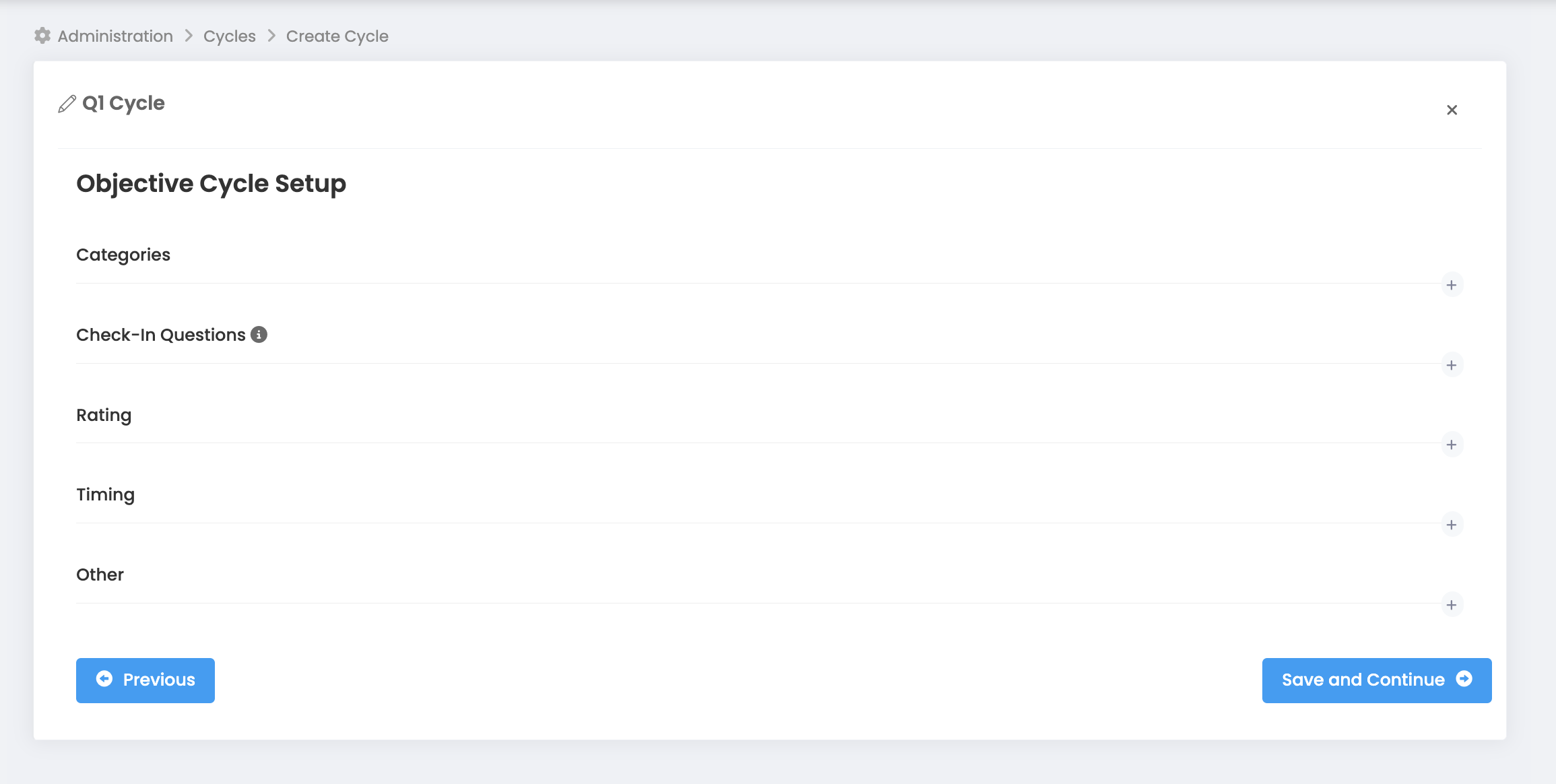
When you press the "+" sign next to the rating tab, you will see the following screen.
In the Rating type section, you can proceed by selecting one of the options "Disable Rating, Rating by progress, Manager Rating, Formula Rating".
Manager Rating
At the end of the cycle, managers evaluate and score their employees using the rating scale you determine. A separate evaluation is made for each objective of the employee, and the total objective score of the employee is calculated by taking the average of the rates of the objectives. For example, according to the sample rating scale below, an employee whose 2 objectives are rated as "Much Less Than Expected" and "Less Than Expected" will receive (20+40) / 2 = 30 points from the sum of his individual objectives.
Attention: Individual objectives are rated by the employee's manager, group objectives are rated by the group manager's manager, and company objectives are rated by the company manager.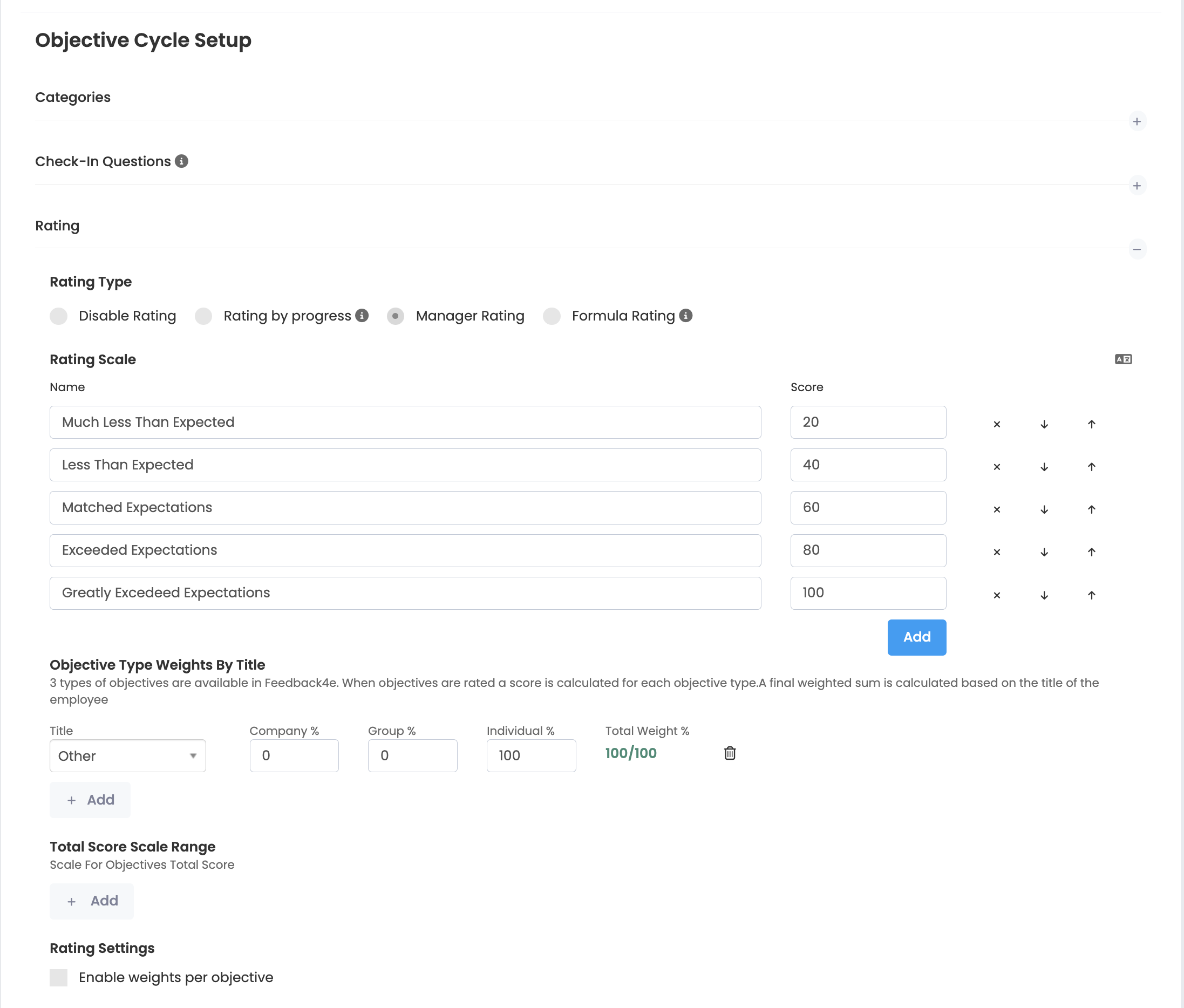
What is objective type weightings by Title?
In Feedback4e, objectives can be defined as individual, group and company objectives. The rates resulting from the evaluation of these 3 types of objectives are weighted on a title basis to create a total objective score for each employee. If you use the "Other" option, the same weighting percentages are used for all titles. If you add a new title, the weighting percentage will be used only for employees with that title, and the weighting in the Other line will be used for all other titles. In order to complete the settings, you must define at least 1 weighting rule.
If you are using a objective management system that consists only of individual objectives, you should weight individual goals at 100%. However, if you have group objectives and company objectives and you want them to be scored and affect the employee's total objective score, you should also focus on company and group objectives.
Example
The following goals of the employee, their weights and the points they have received are available. In this example, the target weighting feature is activated. Otherwise, each target is weighted equally within its type.

Assuming that the employee's company weight is 30% based on title, 40% weight in group objectives, and 30% weight in individual objectives, you will see that the score he/she will receive at the end of the period will be calculated as follows.
80 * 30% + 72 * 40% + 60 * 30% = 24 + 28.8 + 18 = 70.8
Attention: The maximum score that can be obtained from each objective category above is 100. The score scale is adjusted so that a maximum of 100 points can be obtained. If you wish, you can change the maximum score that can be obtained by changing the points on the score scale according to the needs and expectations of your own company.
Rating Settings
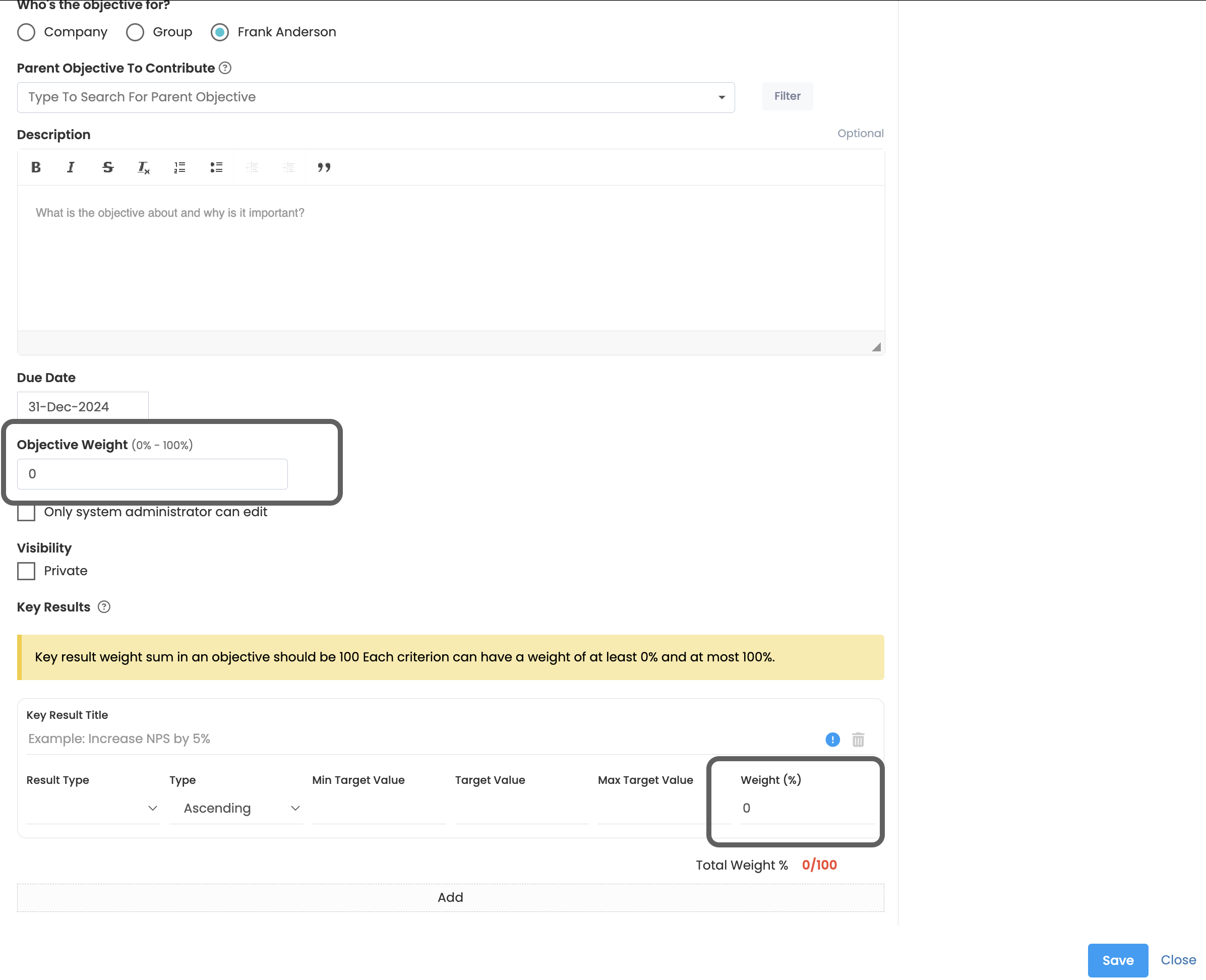
If you wish, you can ask employees to define percentage weightings when creating their objectives. In addition, you can add minimum and maximum objective weight result for each objective. You can also request that each key result they define be weighted.
Attention: Remember that activating the weighting features in the rating settings will make the objective result process more complicated. We recommend that you use this after thoroughly evaluating why you are doing this and what kind of contribution it will make to the performance management process.
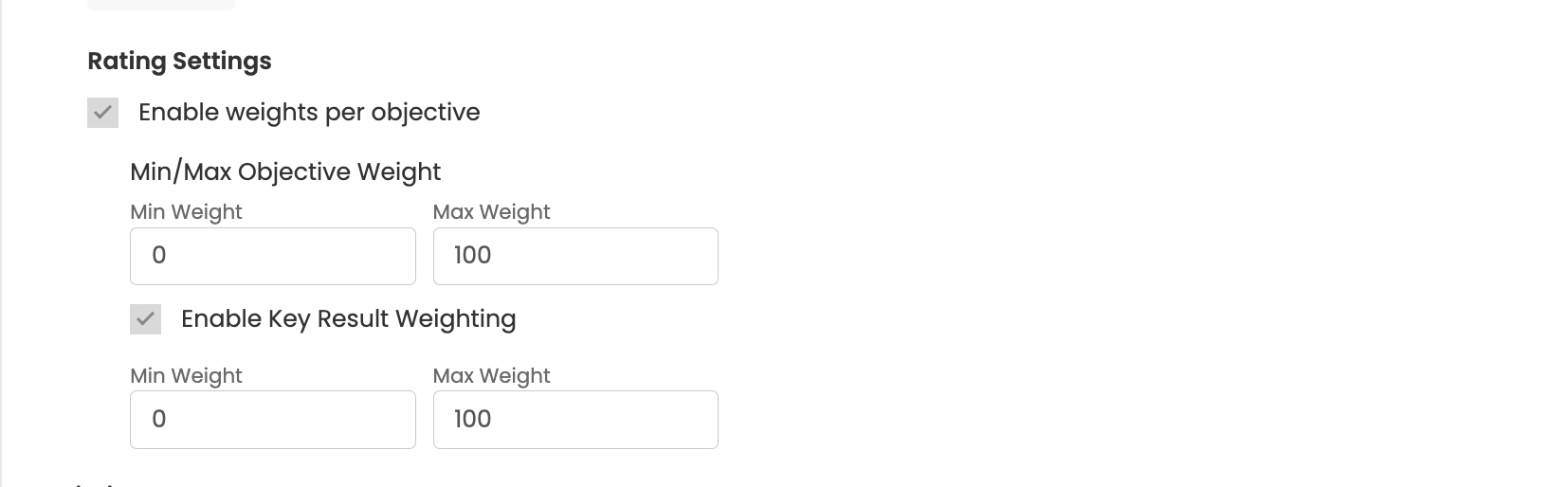
In the screenshot below, you can see which extra fields the employee must fill in when adding a objective if the weighting in the objective and key result is enabled.
Rating by Progress
In case the key result is checked in (status update), the system automatically calculates a progress rate according to the key result definition. If you're wondering how this progress is calculated, click here. The progress percentage resulting from this calculation is reflected in the objective progress as a percentage, in proportion to the number of key result in the objective and the weights of these key result. The system calculates a total score by taking into account both the objective and key result weights and creates the total objective rate. This rate is calculated instantly and the employee sees her/his total score instantly.
In the screenshot below, the user who has checked in
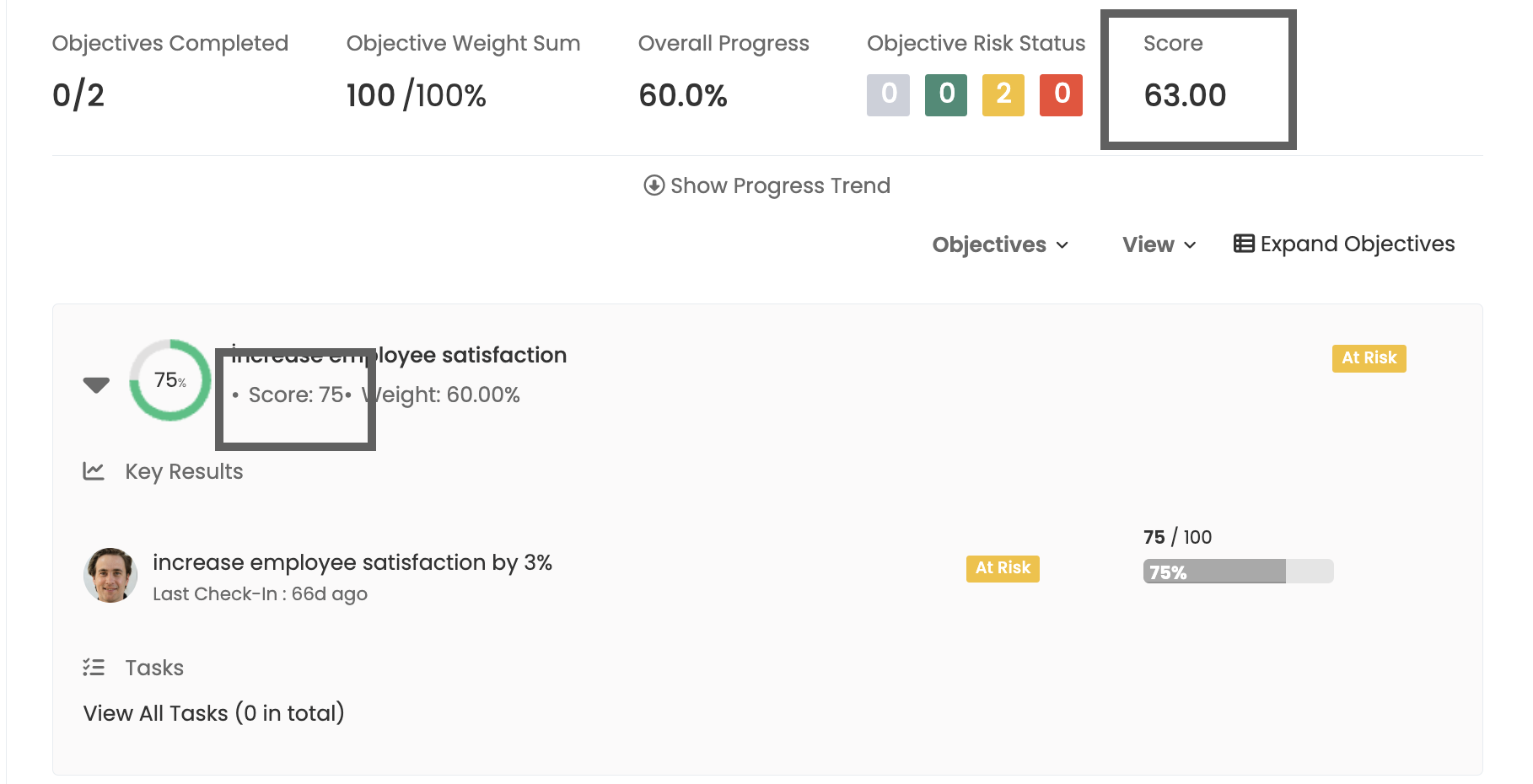
Example: If you made it this far, we understand that you love mathematics. So now let's make an example calculation. Remember, you will need to explain this calculation to your employees.

Total Objective Rate = 57.6 + 10 = 67.6
Formula Rating
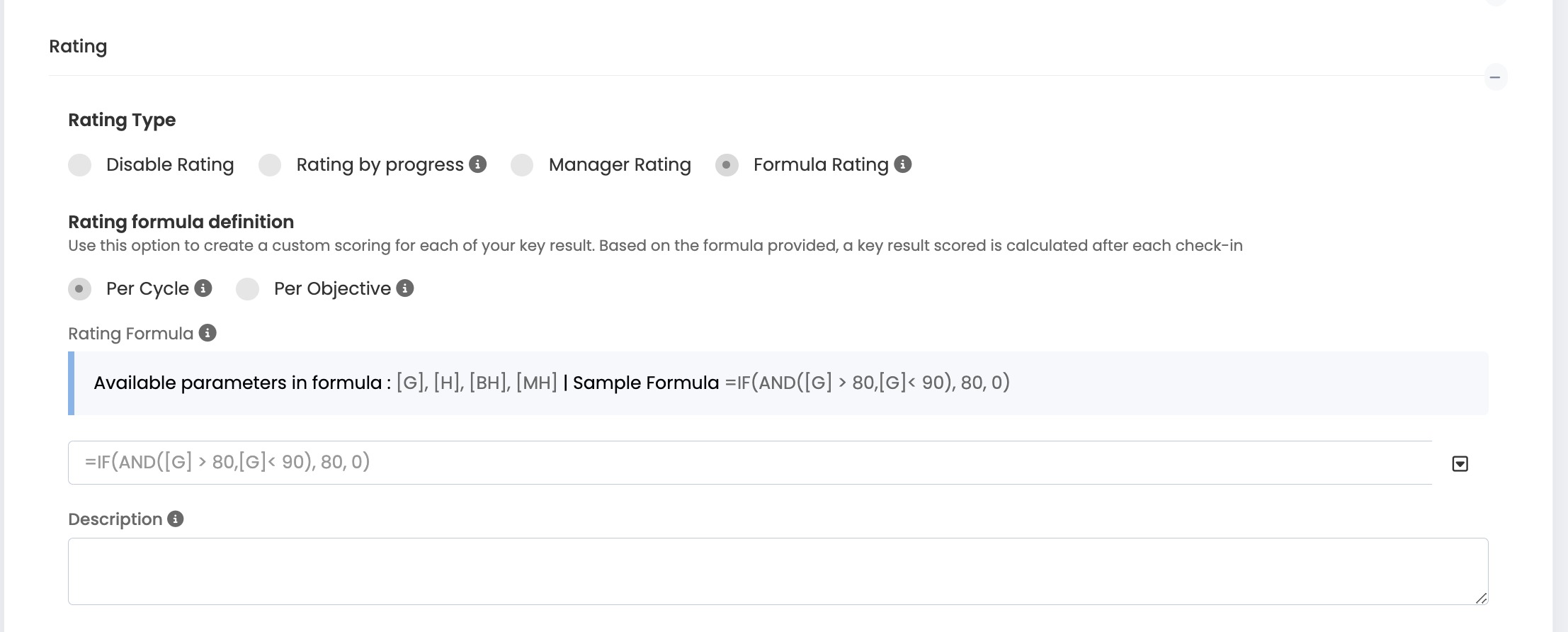
Now get ready because you must be good with Excel to use this option. In some cases, you may want to score according to progress using a specific formula. If the scoring culture is highly dominant in the company and you want to set up different scores at different progress rates, this option is for you. For example, you want to give 100 points for key result whose progress is above 70%, and 0 points for key result whose progress is below 70%. Then you're in the right place.
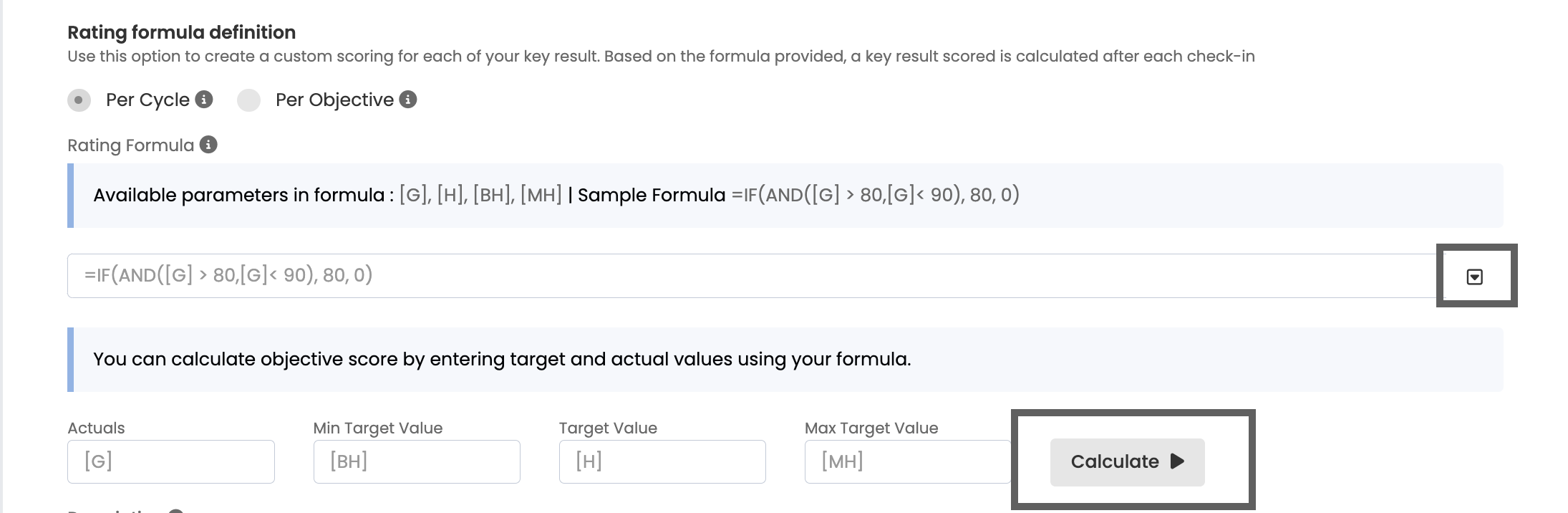
Just like scoring according to progress, when each success criterion is checked in, the Excel formula you will define in the screenshot below will be activated and the success criterion score will be calculated. This score will then be combined with other scores to calculate the total target score.
For the formula, you need to create a formula starting with the = sign, just like in Excel.
Example Formula =IF([G]<[H], 0, IF([G]>[H], 100))
This formula; If the G value (Check-in value) is less than the H value (Objective value), it gives a score of 0. If the G value (Check-in value) is greater than the H value (Objective value), it gives 100 points. The important point here is that you can easily determine all of these parameters and numbers yourself. If you wish, you can also change the value of 100 to 40 so that the resulting score is 40. The important point is that you can determine the score your employees will receive from here using the parameters using any formula you want.
Below you can find other parameters you can use in the formula:
[G] => Check-In Value
[H] => Objective Value
[BH] => Lower Limit Value
[MH] => Upper Limit Value
How do I test the formula
After typing the formula, click the icon to the right of the formula box. Enter the Example Actual, Lower limit, Objective, Upper limit values and click on calculate. Make sure that the formula works and gives correct results according to the formulas and values you have defined.