
Check-in
Check-in allows you to report progress and status for the key rsult and tasks that have been created. “Total Progress” and “Risk Status” views are shaped by check-ins. So how can you do this?
Key Result Check-in
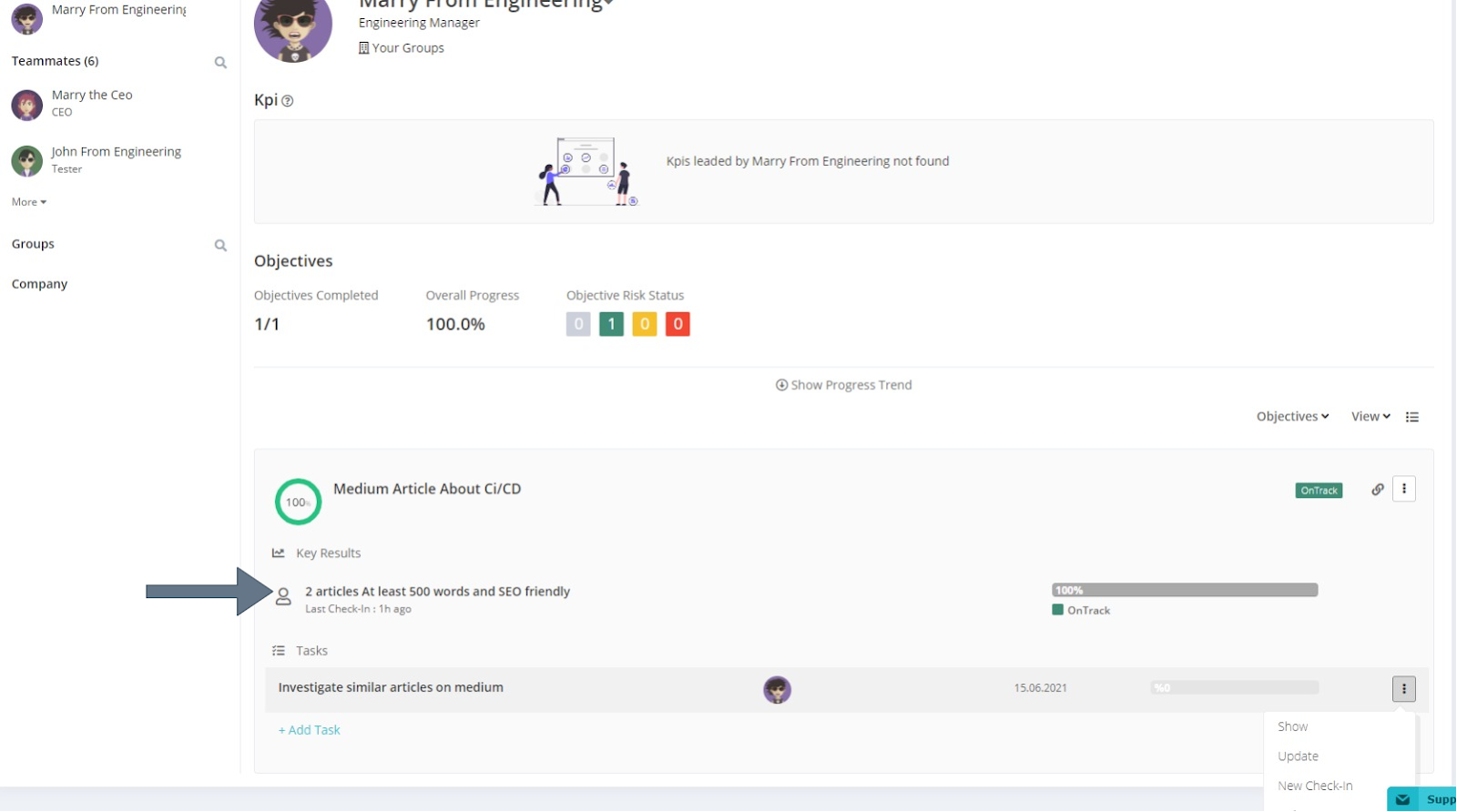
You need to click on it to create a check-in for the key result.
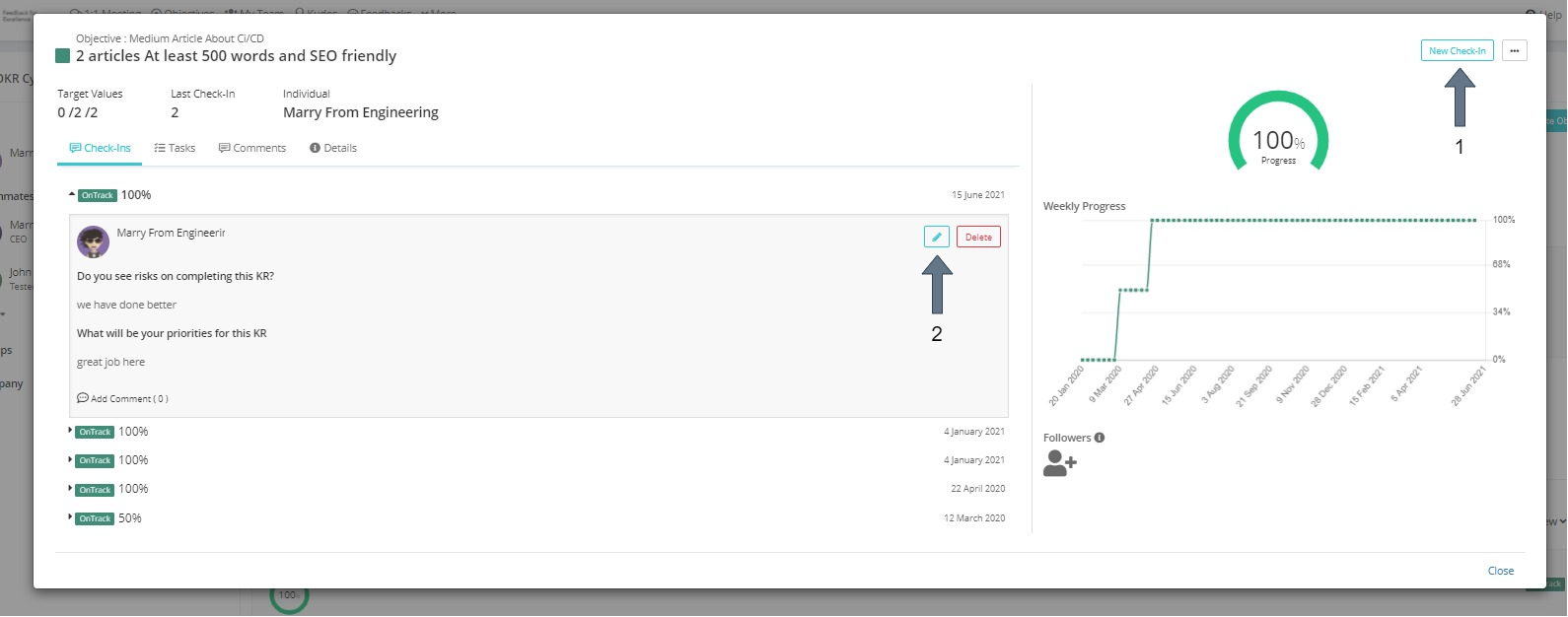
You will be presented with this window.
1. New Check-In
You need to click on this button to new check-in.
2. Edit
If you want to edit a check-in that you have previously created, you can edit it by clicking the button with the pencil icon.
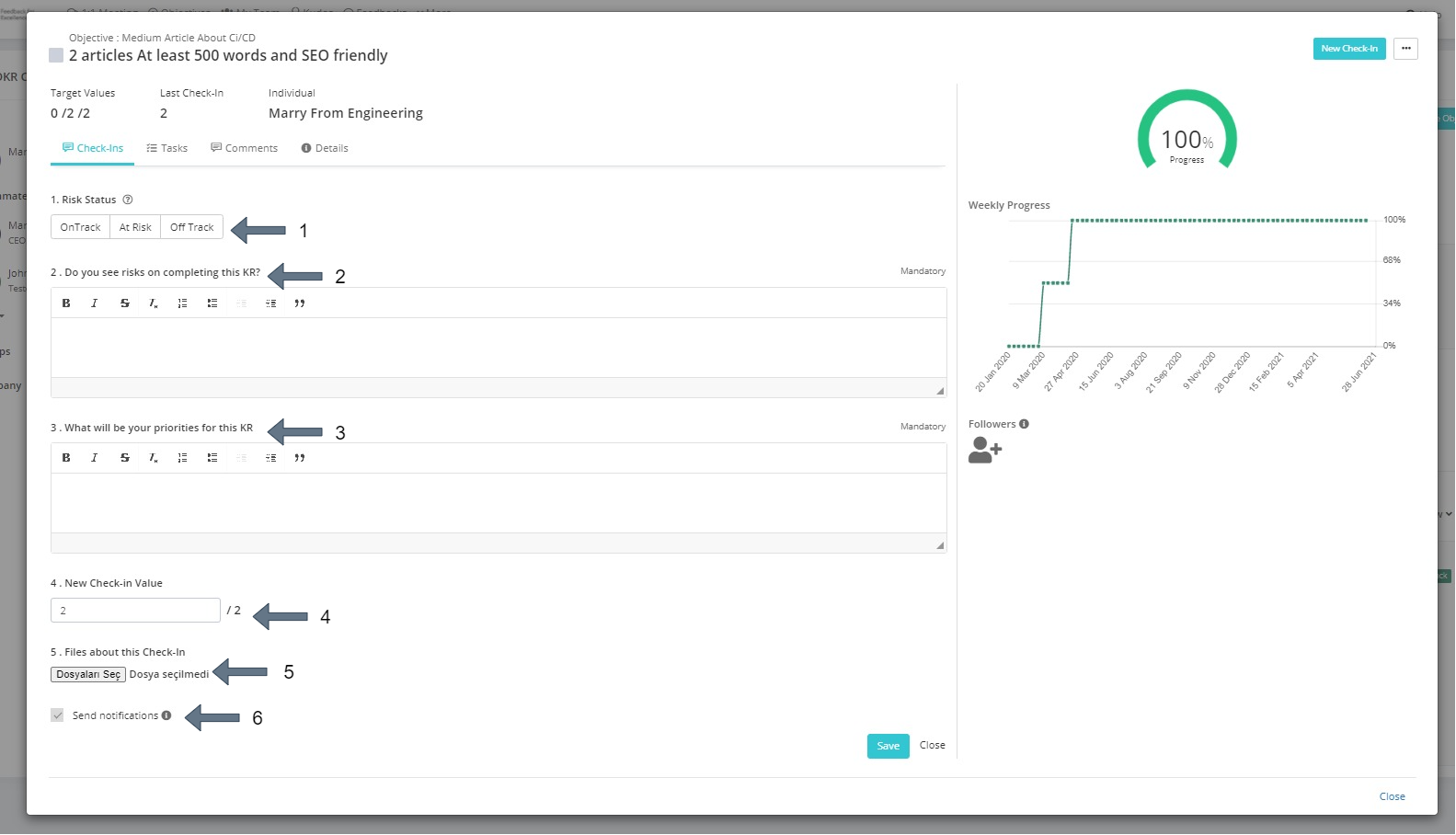
There is information you need to fill in for the check-in you will create. These allow you to move forward and concretize your situation.
1. Risk Status
There are 3 situations you can report: “On track”, “At Risk” and “Off Track”. You must select one of these to report the latest status of your criteria.
2. Check-In Question 1
Check-In questions are questions that can be determined when creating the period. As an admin, you can change these questions by increasing or decreasing them as you wish. If you do not want to change it, you will be presented with these two ready-made questions.
3. Check-In Question 2
Check-In questions are questions that can be determined when creating the period. As an admin, you can change these questions by increasing or decreasing them as you wish. If you do not want to change it, you will be presented with these two ready-made questions.
4. New Check-In Value
This is the section where you will determine the progress value for Check-In.
5. Related Files Related to Check-In
If you are reporting a progress that requires you to share documents, you can upload your documents to the system here.
6. Send Notification
If you want your manager to be notified for this check-in, the box must be checked.
Frequently Asked Questions
Can Key Result Check-ins be deleted?
Check-ins cannot be deleted by anyone other than the system administrator. However, the check-in owner or system administrator can update check-ins.