
About Group Objectives
Group Objectives are like team or squad goals. Like all goals, they can be associated with objectives at the next level in the organization; these can be company and/or department objectives, as well as the objectives of other teams horizontally.
Some companies use the group feature to establish vertical organizational departments, functions and/or teams, while others use it to define horizontally working project and/or agile teams. In essence, this feature is designed so that companies can use it flexibly whenever they want to bring any team together around a specific goal.
To create a group objectives;
You need to follow these steps:
1- Business objectives >
2- Create Objective > Group
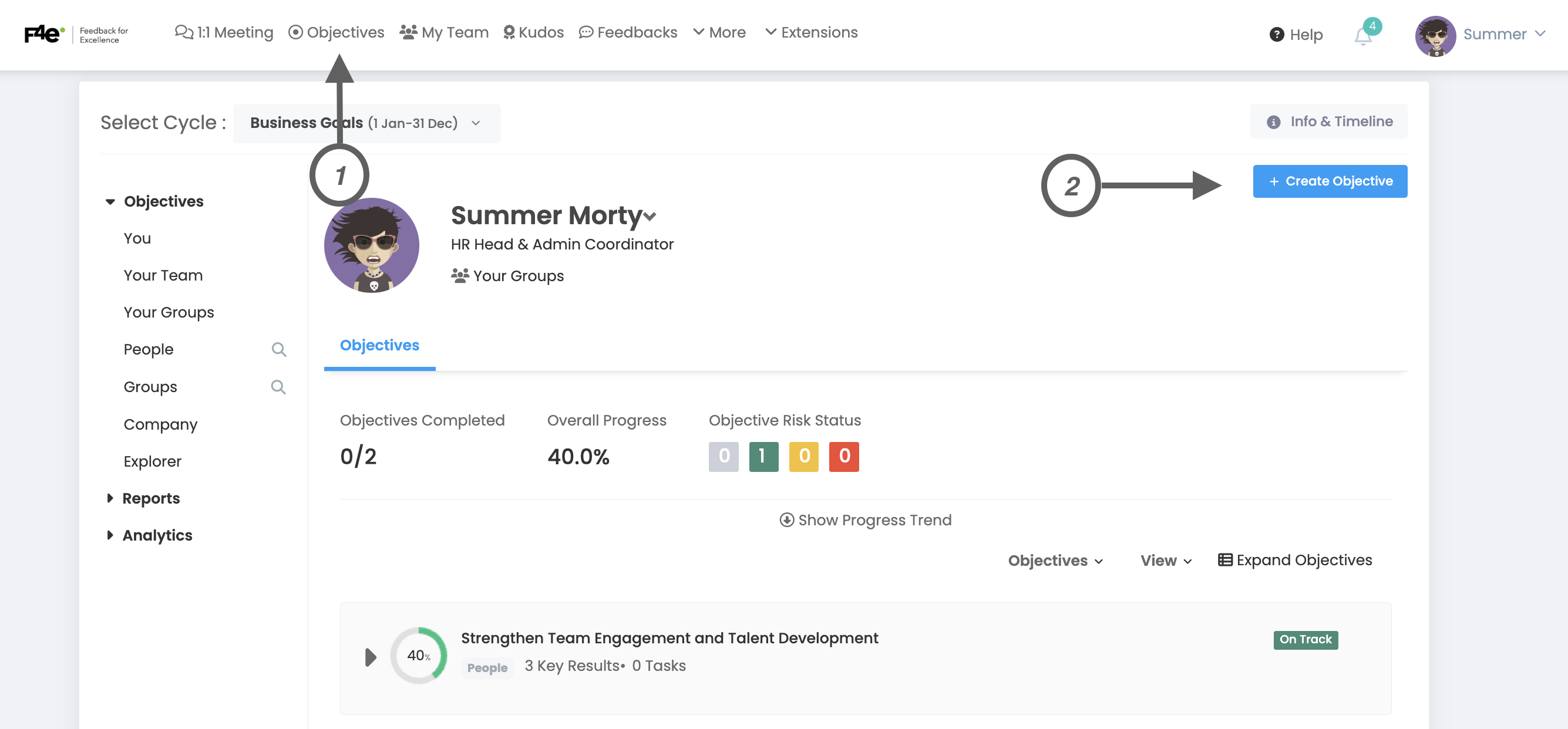
When you click on the create objective button, the following window will open.
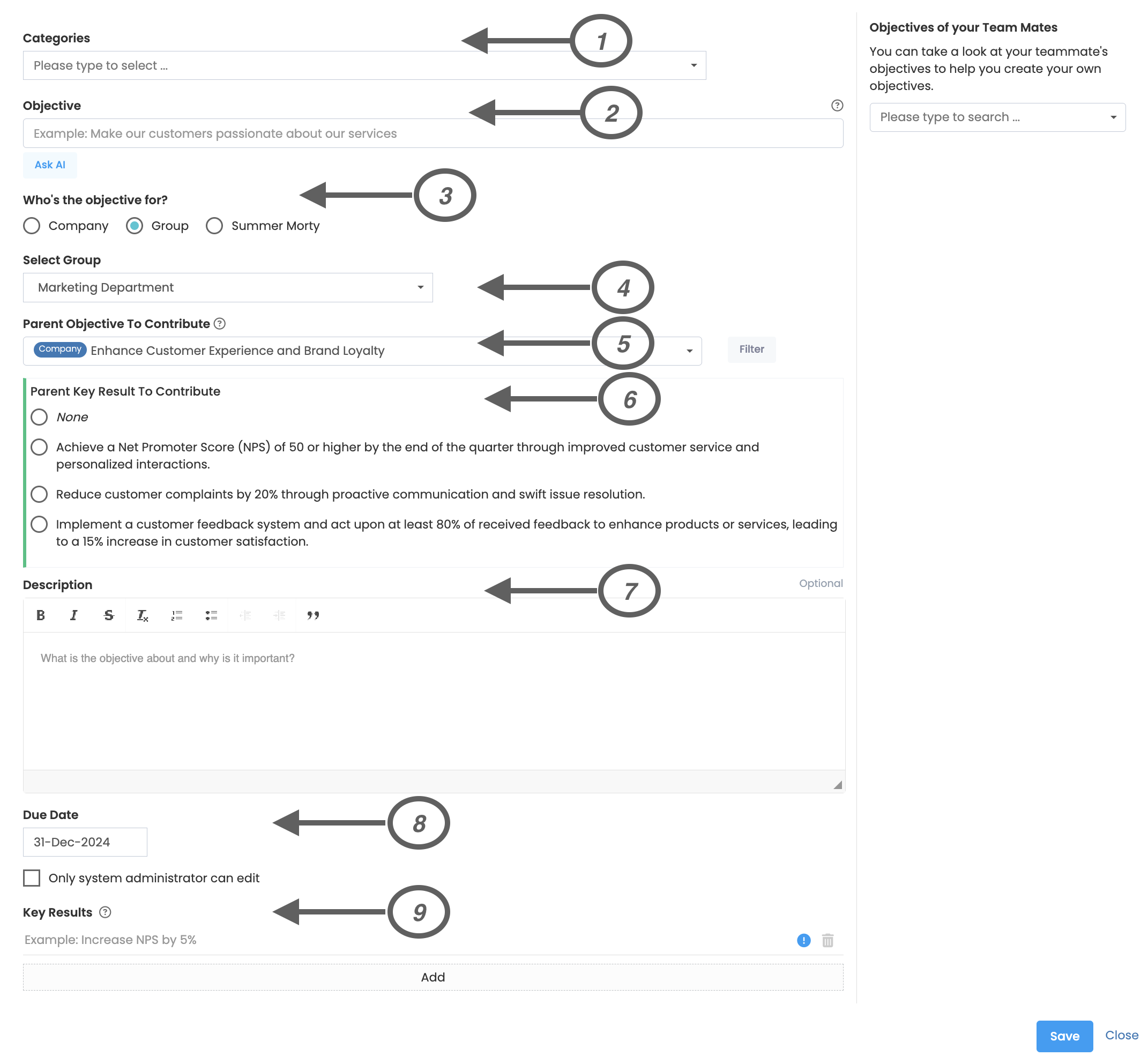
In the window that opens, you need to fill in the required fields to create objective. It is written next to them which fields are optional and which are mandatory.
1. Categories
This is the field where you can select one of the categories you defined when creating the period.
2. Objective
This is the area where you should write what your goal is.
3. Who is the objective for?
This is the field where you need to select the audience that is responsible for the target. (Company, Group, Individual)
Group objectives can be added by the administrator or admin user of that group. On the Groups page, make sure an administrator is defined for each group.
4. Select Group
Field where you can determine which group the objective will be assigned to. While admin users can define targets for any group, group administrators can only define objectives for their own groups. In addition, top managers of the group can also define group objectives for their subgroups.
5. Select the parent objective to contribute to
The objective you will associate can be a company objective, another group objective, or an individual objective. The system does not restrict the target you define with which other objective you can associate it with.
6. Parent key result to contribute
If the objective contributes to another objective, you must decide whether it will affect the progress of the contributed objective. In this case, the progress in your objective will contribute to the progress in the parent objective you associate with in the same proportion as a KR of the parent objective.
7. Description
Space where you can give a brief description of the objective and its importance. This part is optional, you don't have to explain if you think the objective is clear enough.
8. Due Date
It allows you to set the objective's due date.
9. Key Results
You can create the key results for the objectives you set here. It is mandatory to enter at least 1 key result for each objective.
Frequently Asked Questions
To see group objectives, simply click on the group link on the left panel and select the group you want to see.
By Whom Can It Be Created?
- Admin users
- Group admin
- Created by the group's top managers at the organizational level.
Check-ins are made by admin or group administrator. However, key result related to group objectives can be assigned to another employee by the group manager. In this case, the employee can check-in to this key result for which he/she is responsible.
Group objectives are transparent and viewable by all employees participating in the objectives cycle. Employees can comment on group objectives, key result and check-ins, and track key result.
I Can't See the Group Name
Only groups of participants added to the target cycle are listed. For example, if none of your colleagues from the finance department are included in this cycle, you will not be able to see the finance department.