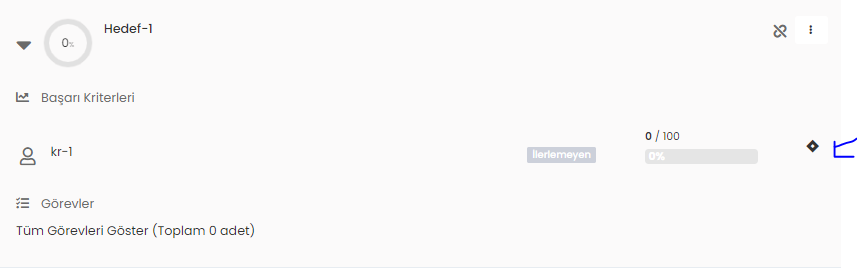
By activating Jira integration in your account, you can associate the success criteria of your employees' business goals with Jira issues. This association can only be made if scoring is not used within the business objectives period.
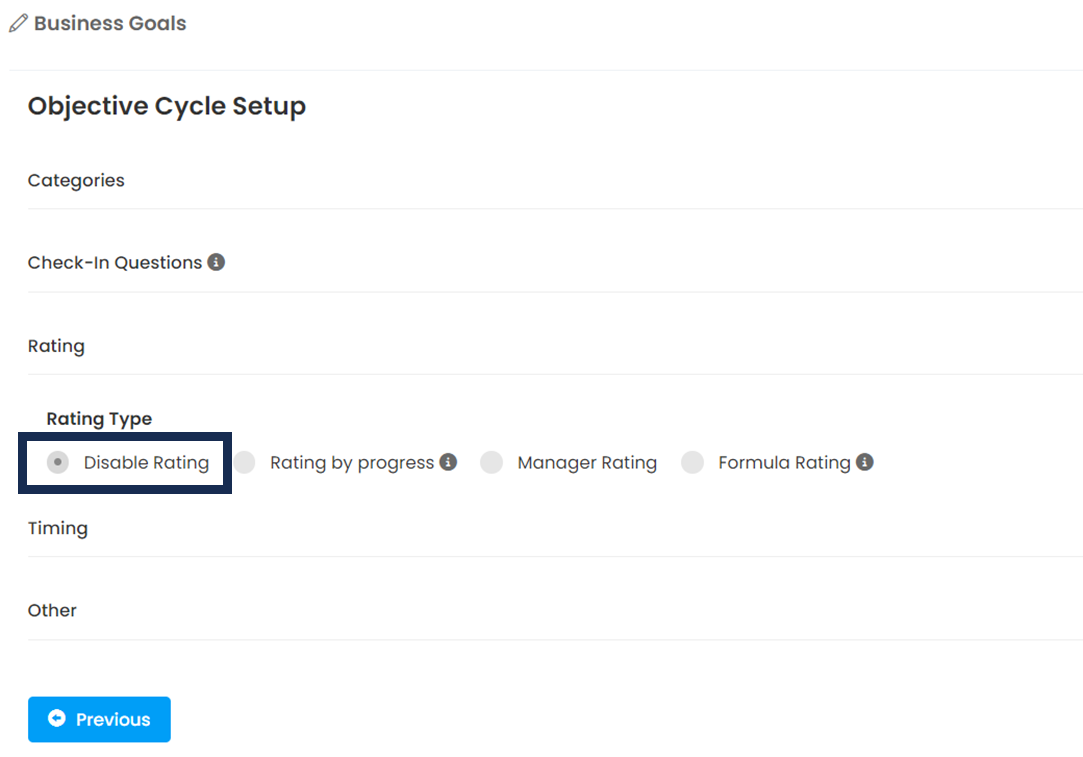
To activate Jira integration, you must first be a Jira admin user. at Feedback4e
Administration > Integrations > Jira > Add Jira
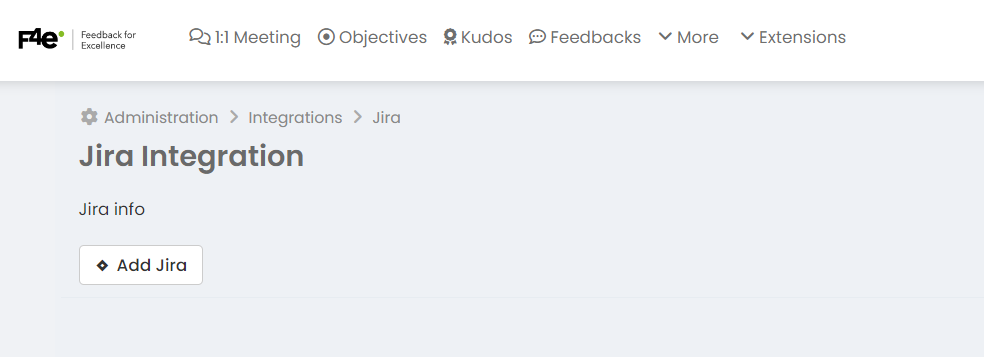
Click on the Add Jira button, this will direct you to the Jira login screen.
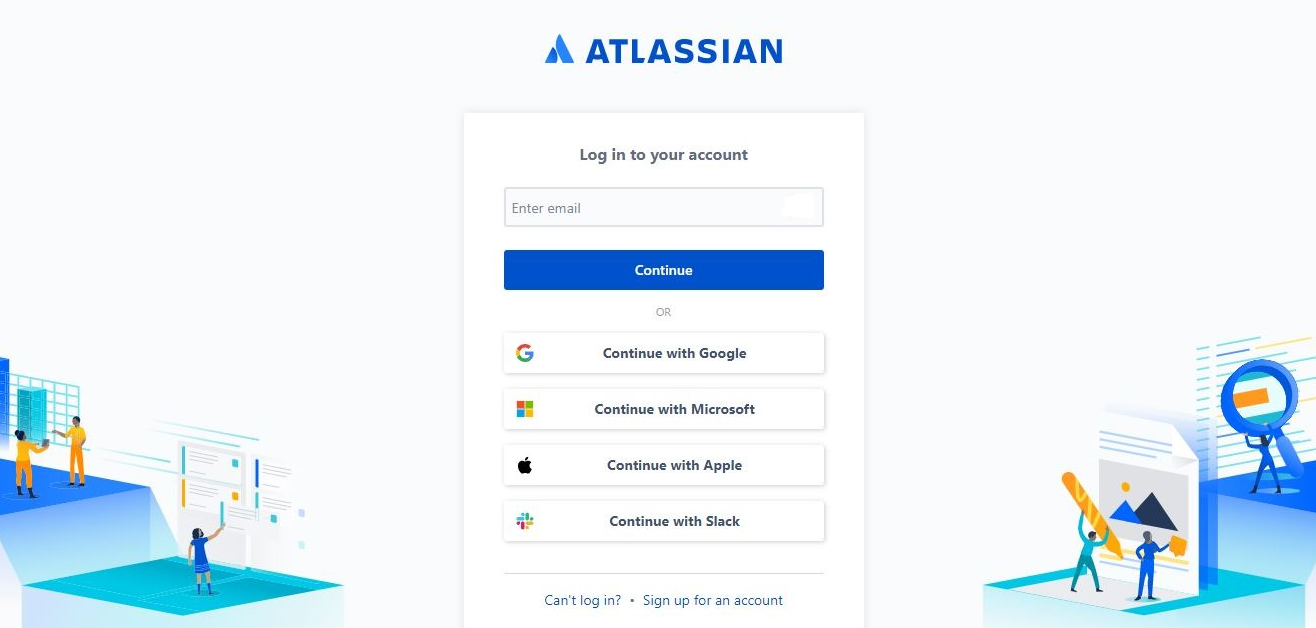
Click on the Add Jira button, this will direct you to the Jira login screen.
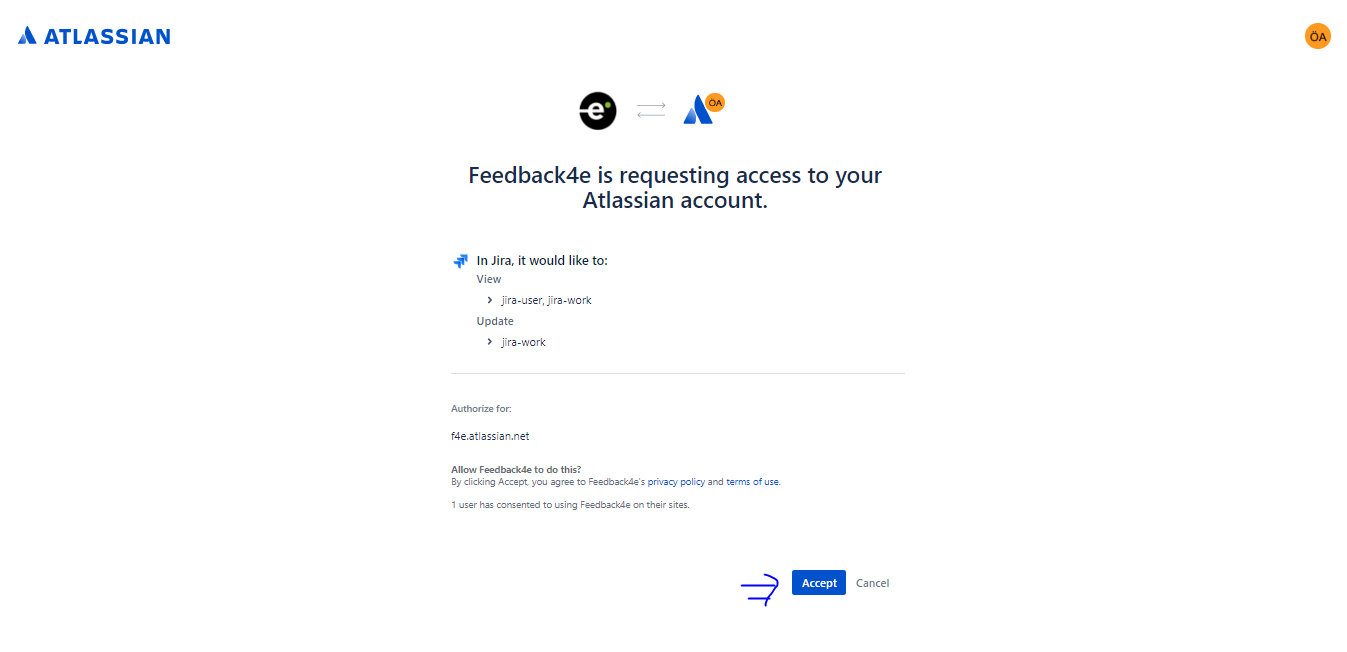
On the next screen, Jira will list the permissions you need to grant to integrate with Feedback4e. Proceed by pressing the "Accept" button.
Your account is now integrated with Jira.
Association when adding a work target
Your account is now integrated with Jira. Click the Jira icon marked below in the success criteria line on the add target screen and press the search button. Select the issues you want to associate.
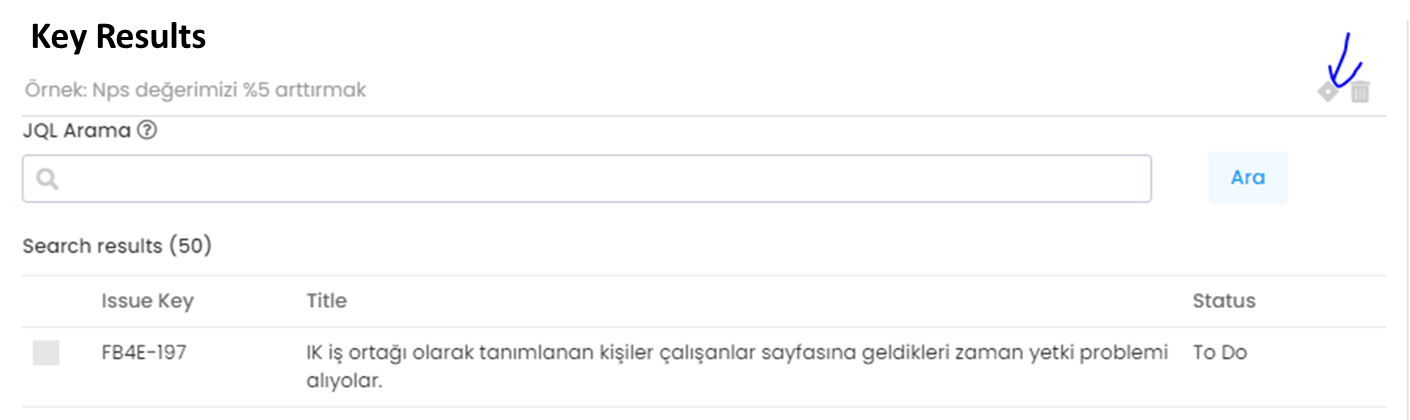
Determine in which jira status the Issue is marked as completed in Feedback4e and press the associate button.
You will see the Jira icon next to the associated success criteria. For this example, we associated 2 issues. When both issues reach done status, kr-1 will progress to 100%.