How can I adjust my Saml settings for single sign on integration?
First, you need to prepare your SAML file. You will need the following information for the settings on your SSO Identity provider.
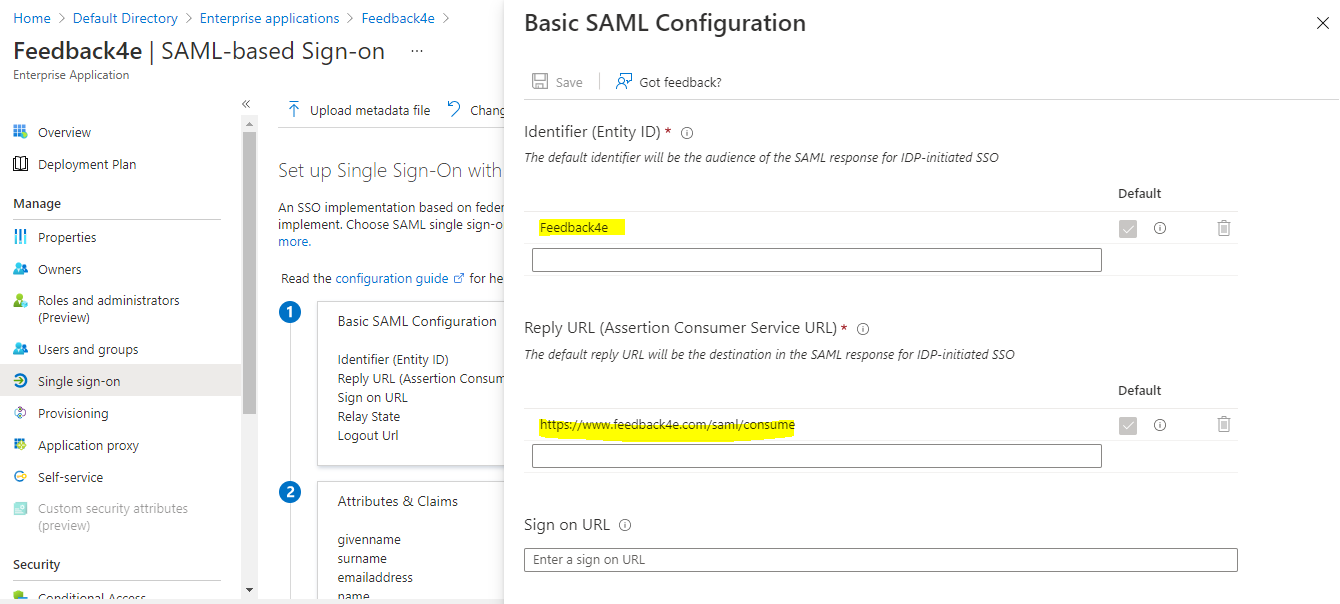
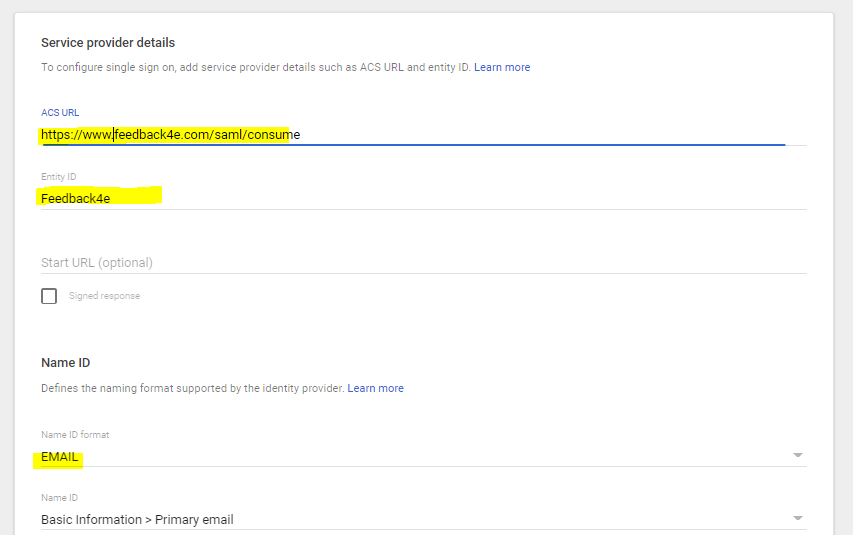
Entitity Id : Feedback4e
Saml Consume Service : https://www.feedback4e.com/saml/consume
Make sure that your SAML file is prepared with the above information.
For Feedback4e settings
More > Administration > Integrationsr > Login Configuration
After viewing the page, select "Saml" as the session type.
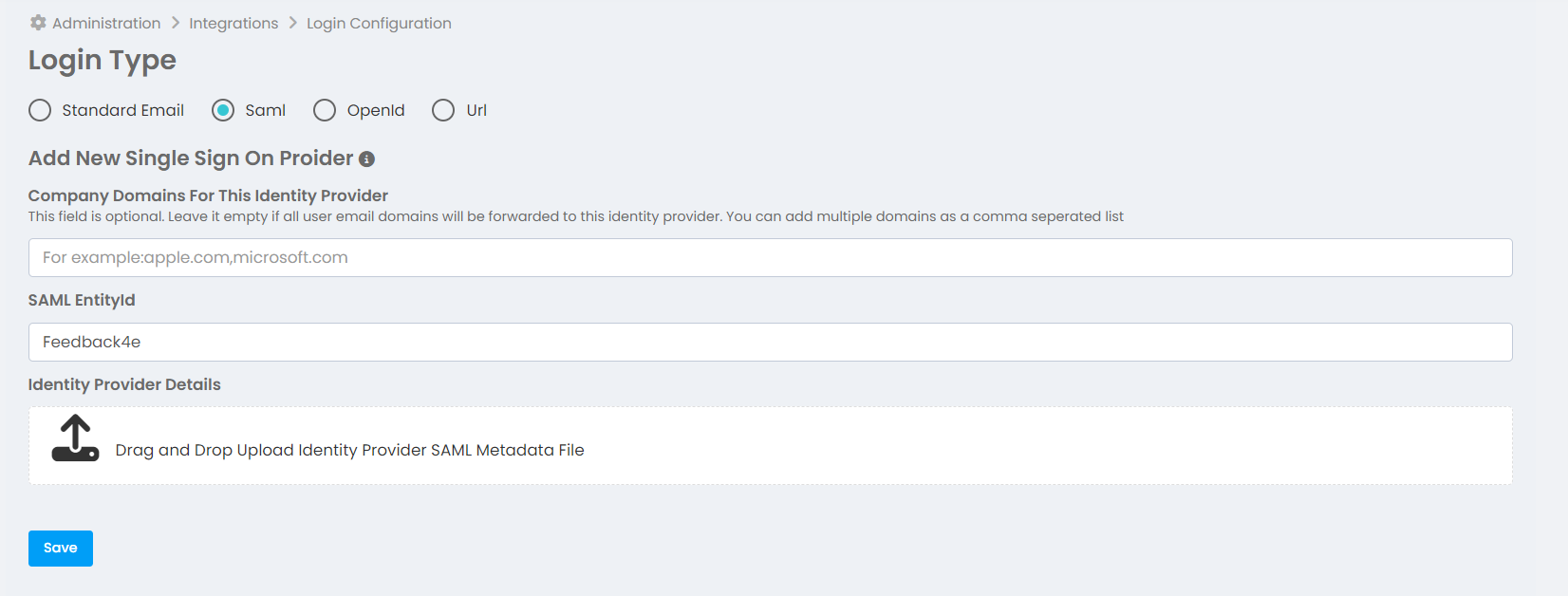
If your company has a single SSO identity provider, leave the domain blank and upload your SAML file.
Feedback4e can support multiple SSO Providers (identity providers) at the same time. To support different identity providers, you need to separate your company domains. Feedback4e decides which SSO identity provider to send to users who log in with their e-mail addresses by separating them according to their domain names.
After adding the saml file(s) and defining the company domain, login links for the added SSO Identity Providers will be listed. This link will direct your users to the login screen of the SSO Identity provider. If users successfully pass the login screen, they will be directed to their own accounts on Feeback4e.
Once SSO is activated, other login methods will not work. Session type is valid for all employees. Some users cannot log in to the system with Standard email and some with SSO.
So how does the SSO account match the Feeback4e account?
SSO forwarding is done based on email address. The email address from the identity provider is matched with the user in the Feedback4e account. If you have not defined the user in your Feedback4e account, a blank screen will appear.
- Azure Active Directory SAML Configuration
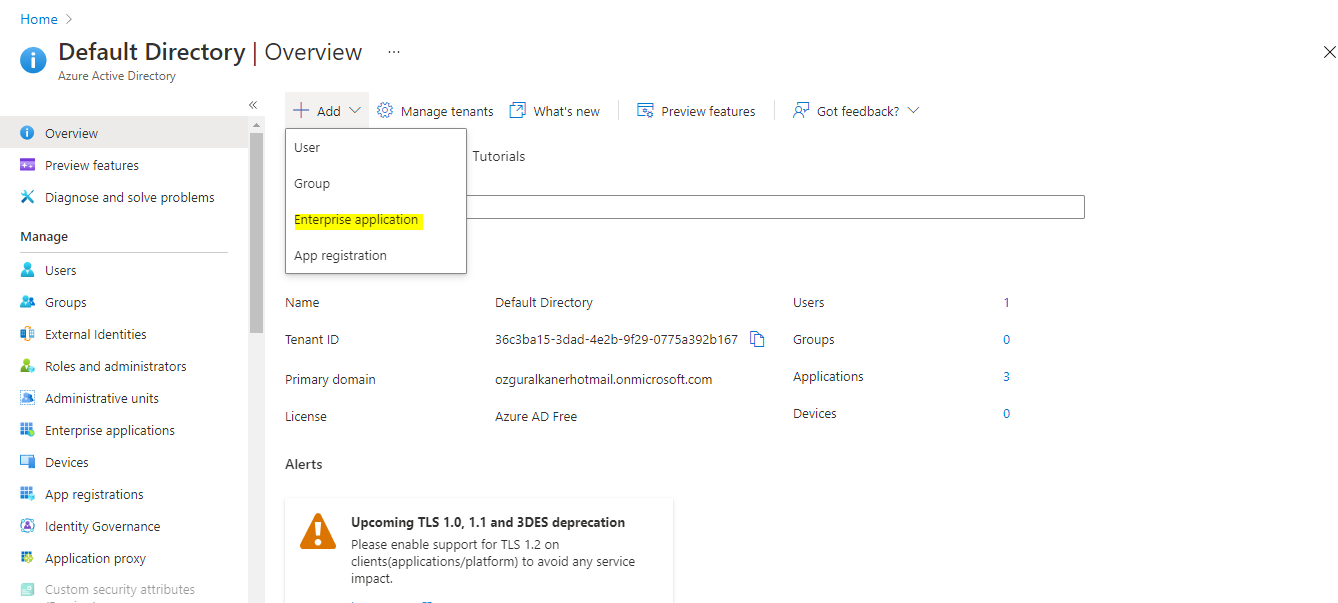
View the active directory application home page on portal.azure.com.
Click the link above to add a new Enterprise application.
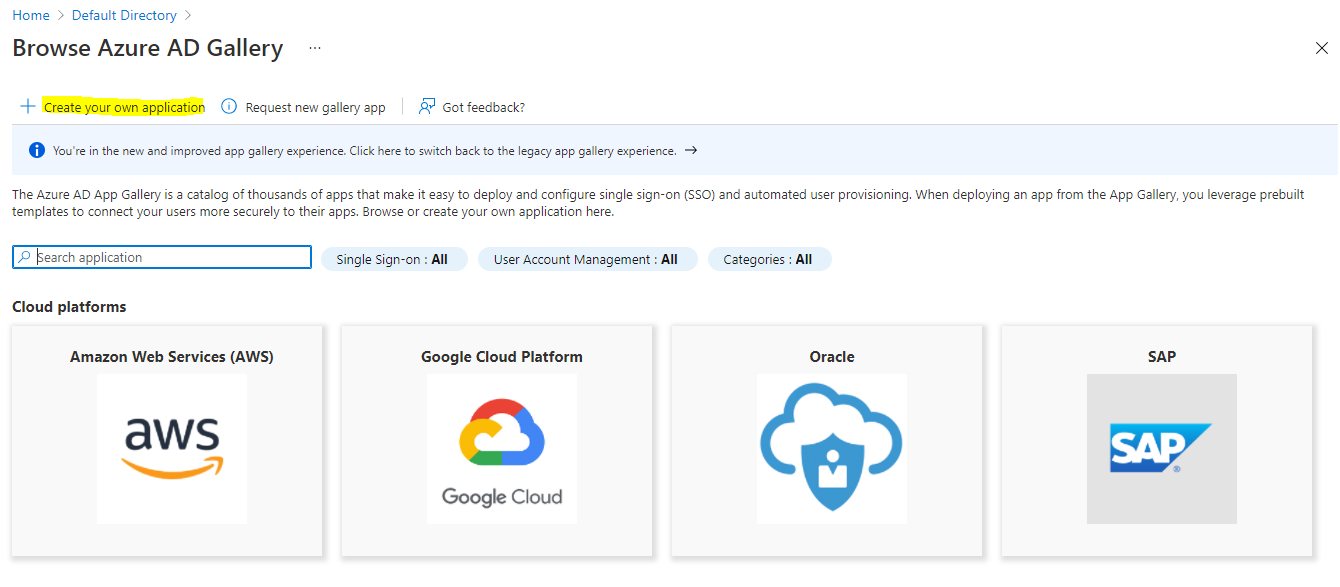
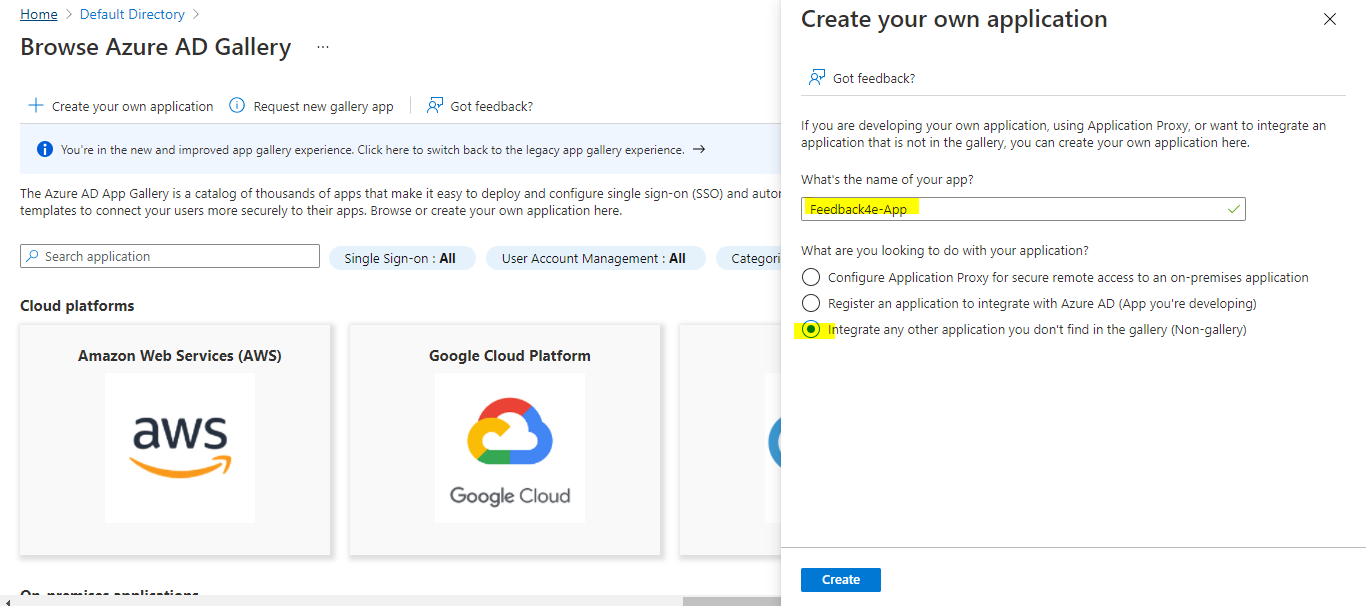
Click on the "Create Your Own Application" link at the top left.
Enter the application name and create.
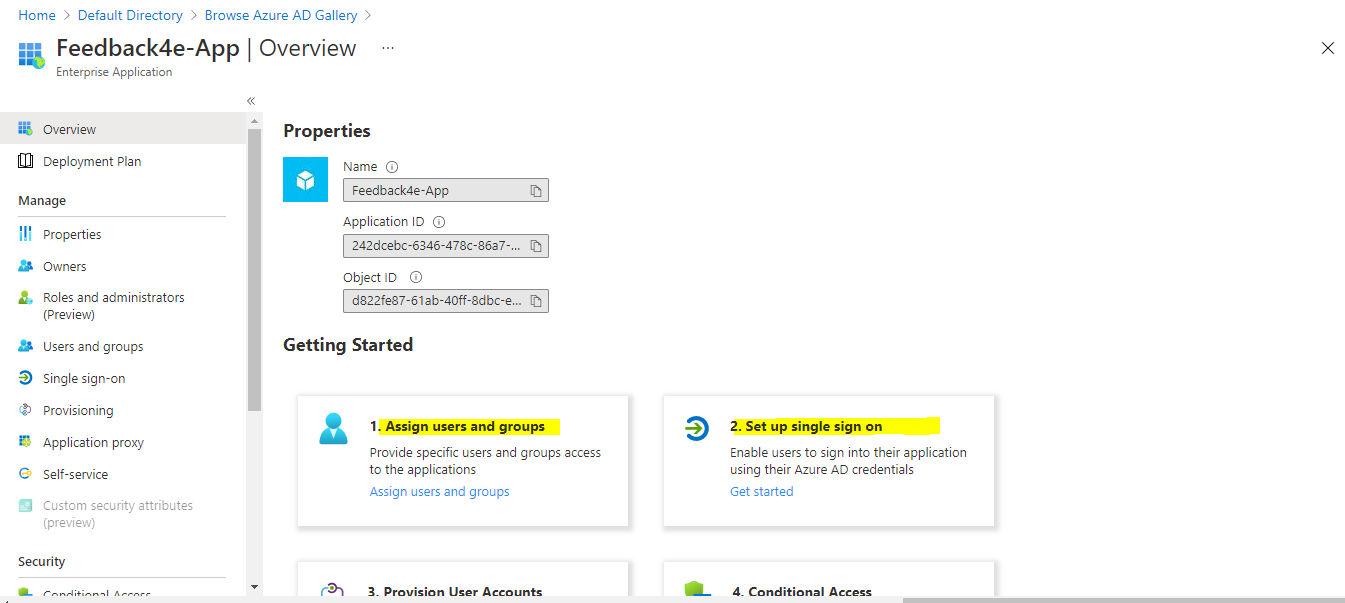
The application was created as follows. Now add users to this application using the "Assign Users and Groups" option in step 1.
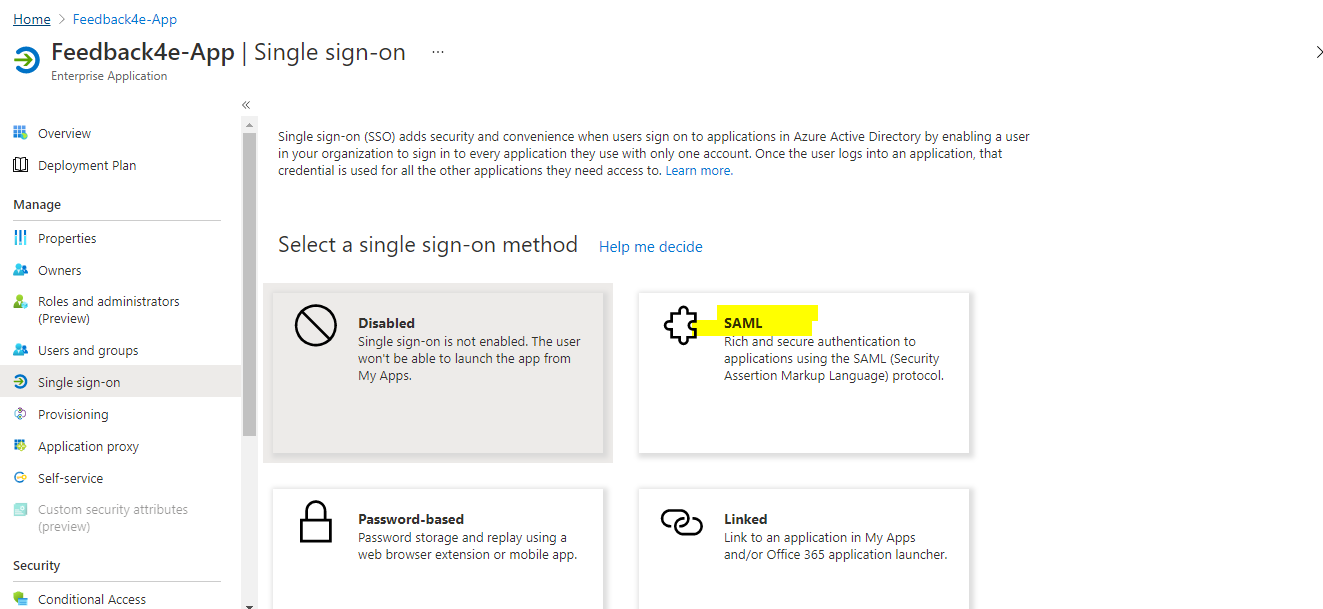
Step 2: Click "setup single sign on" and select SAML as the SSO method.
You need to add EntityId and Consume Server Url in the Basic Saml Configuration fields. Press the edit button.
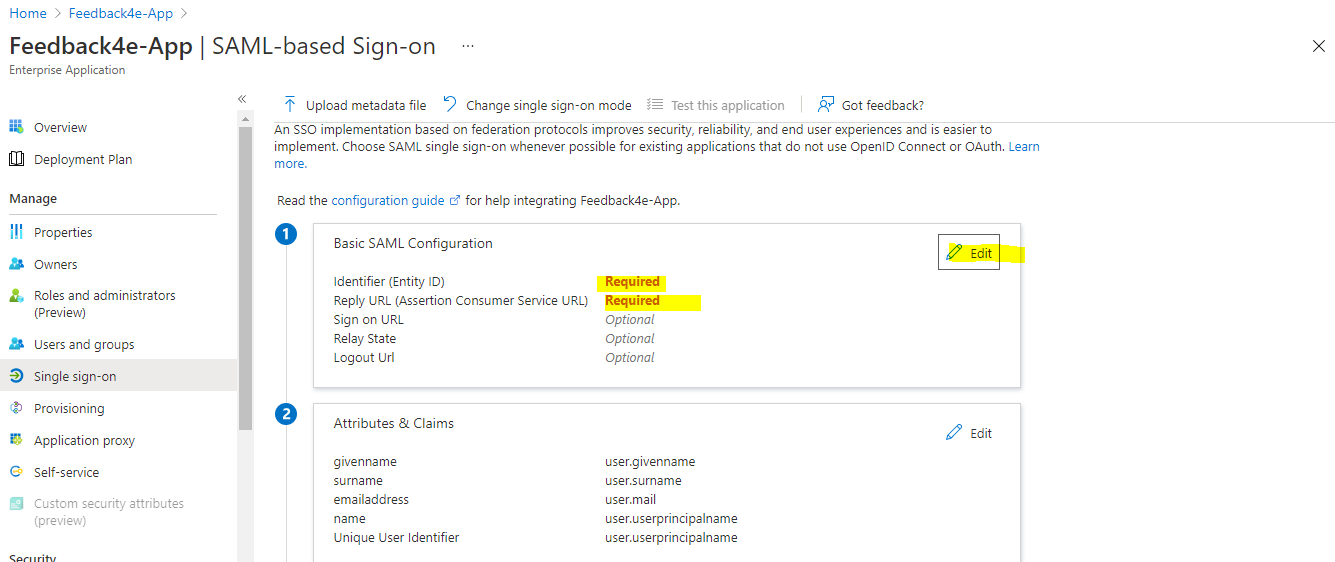
Add and save the EntityId and Consume Url information exactly as in the example below.
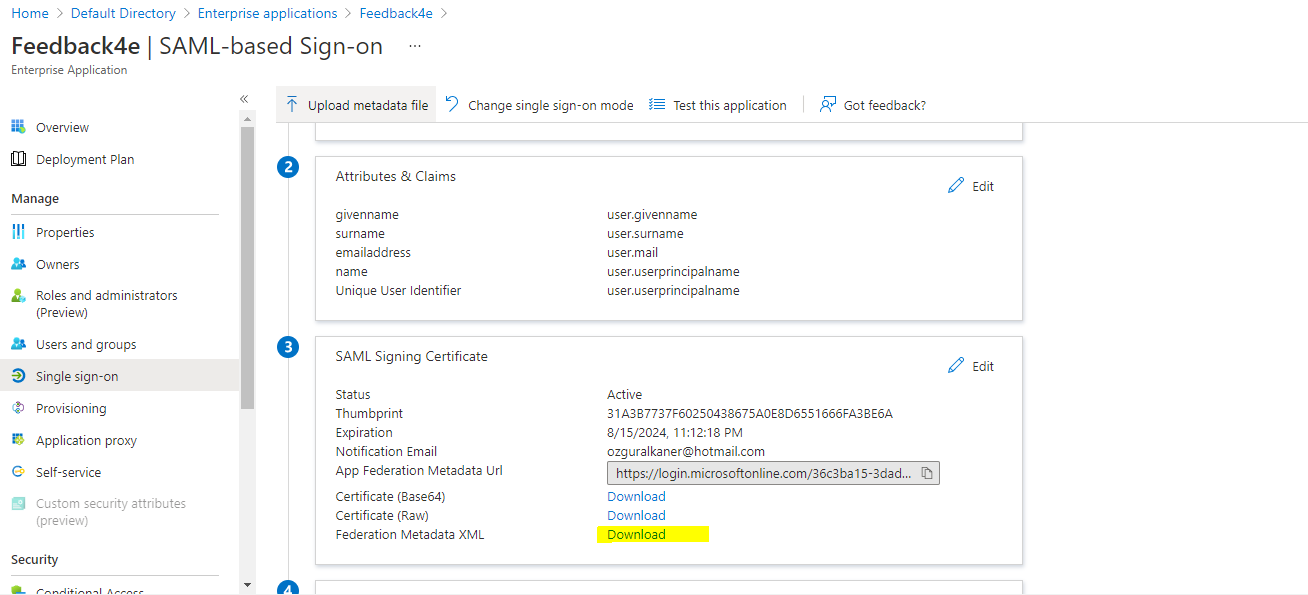
Start the SAML file download process, which is the 3rd step, by clicking the download button next to "Federation Metadata XML". Upload the SAML file you will download to the Feedback4e SSO area using drag and drop
- SAML Configuration in Google GSuite
Connect to your Google account at https://admin.google.com/.
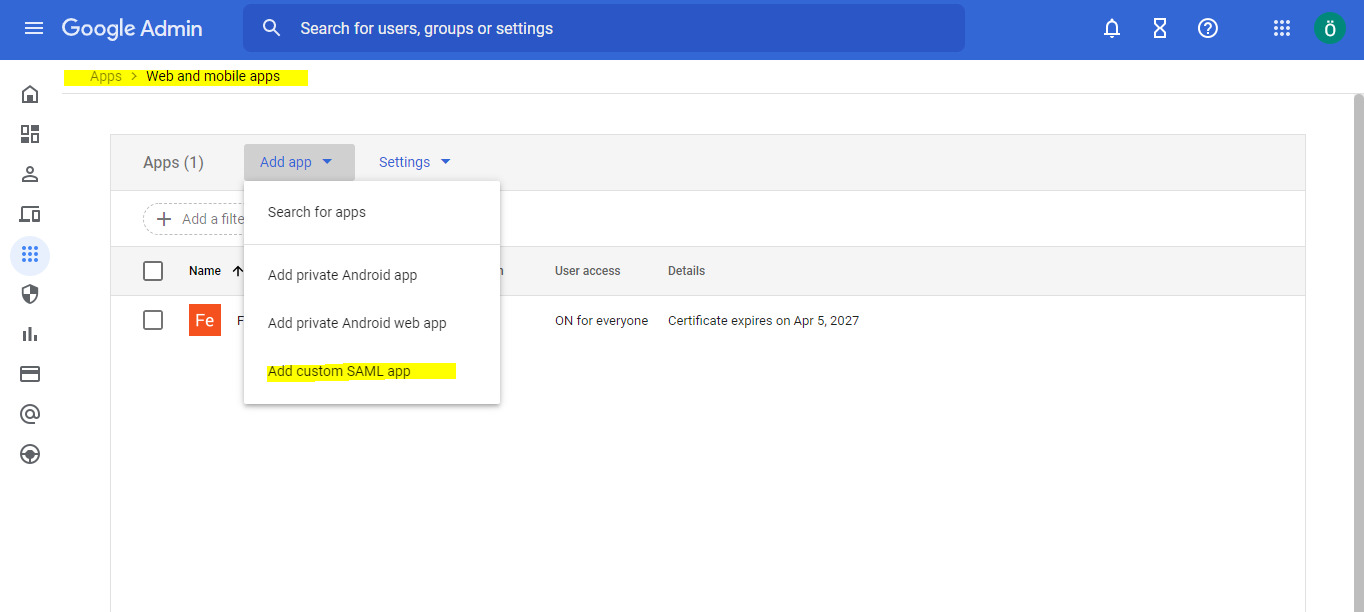
Go to Apps > Web and Mobile Apps page. On this page you need to create a new Custom Saml App.
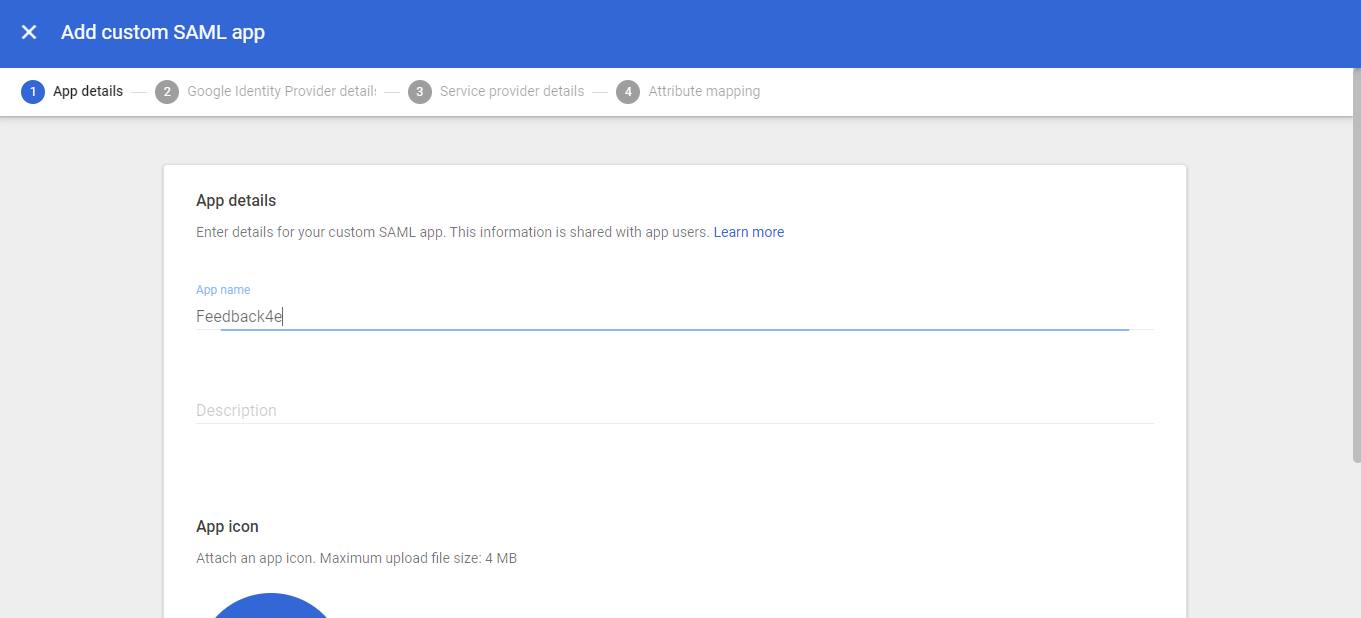
Put Feedback4e in the app name on the first page of the app step
Proceed without doing anything in step 2.
Add the fields marked in yellow in step 3
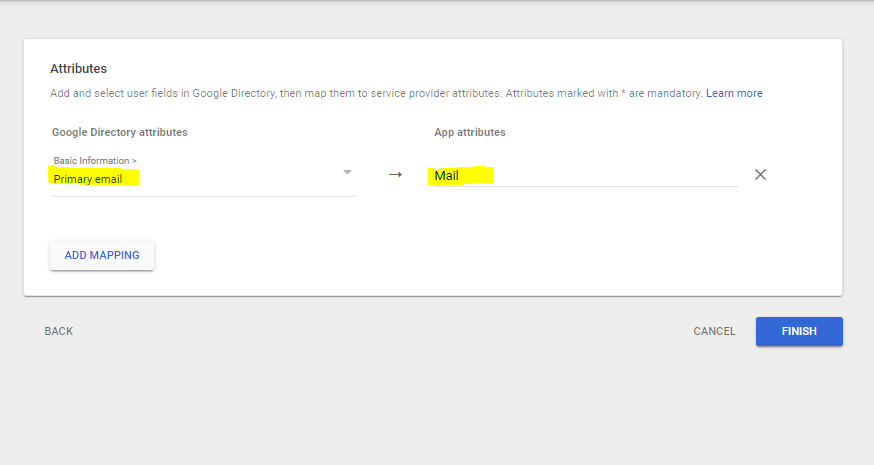
Add the areas marked in yellow in step 4. Mail attribute must start with a capital letter
You created the application, now you need to activate it for all users.
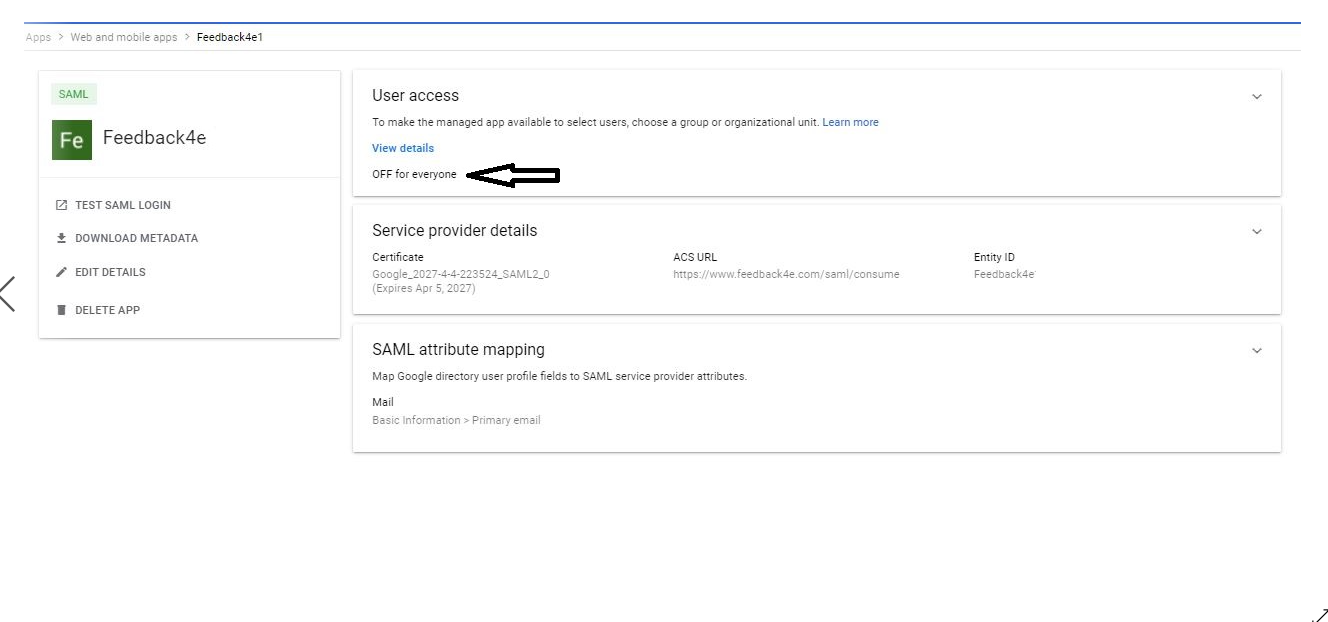 Activate the application for all users as follows. Don't forget to press the save button.

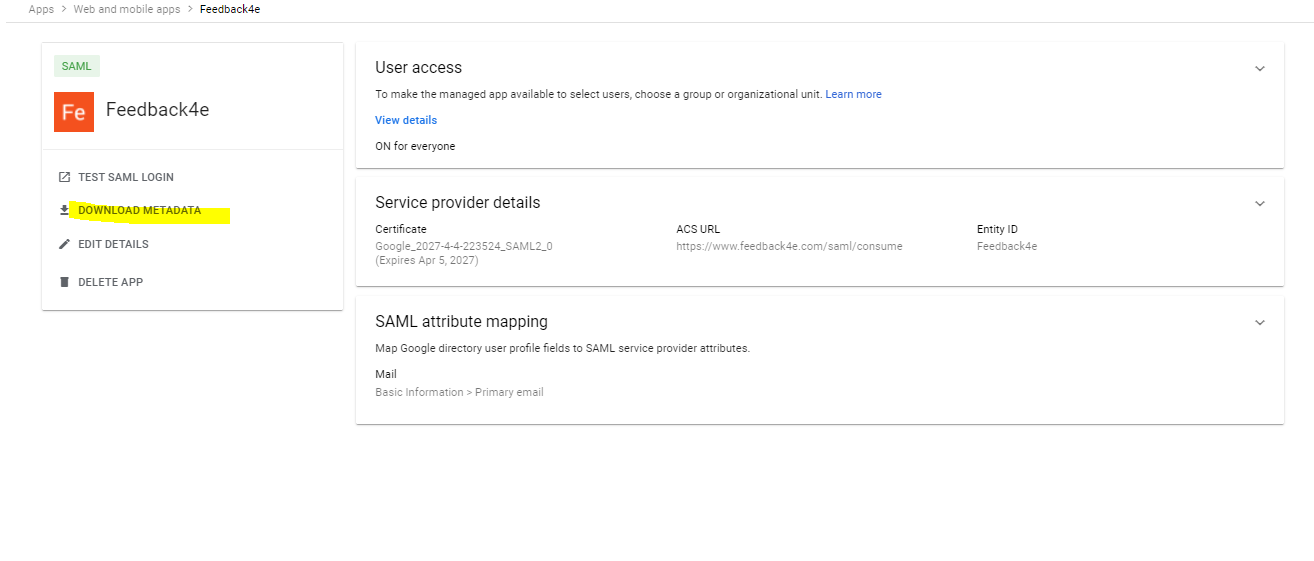
Now that users have activated the app, everything is almost OK. Download your saml file by clicking the "Download Metadata" link on the application page.