
You want to deactivate the user account. So how do we do this?
You can make an employee inactive in the system if they leave the job or for any other reason. The inactive employee continues to appear in active periods in the system. For example, the goals defined by this person, the comments, feedback and check-ins given by this person are viewed by other users. System messages will not be sent to this person.
The user is removed from the company schema. When disabled, the user cannot log into their account, but their data is retained. Administrator information is reset. Passive users are not charged. To make the employee passive;
More > Administration > Employees > Disable
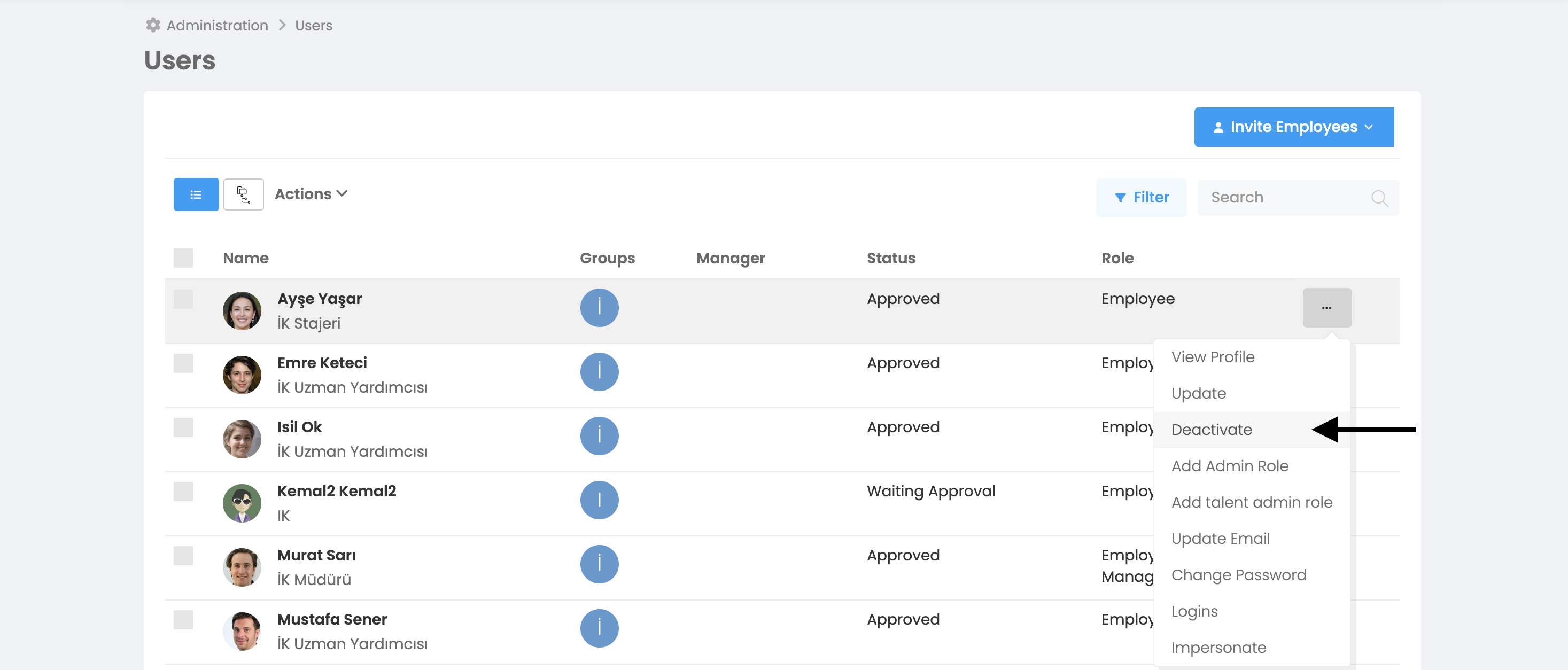
When you come to the Employees window, you need to click on the 3-dot button at the end of the line of the candidate you want to deactivate. Then, when you click on the “Deactivate” button, a warning window will open.
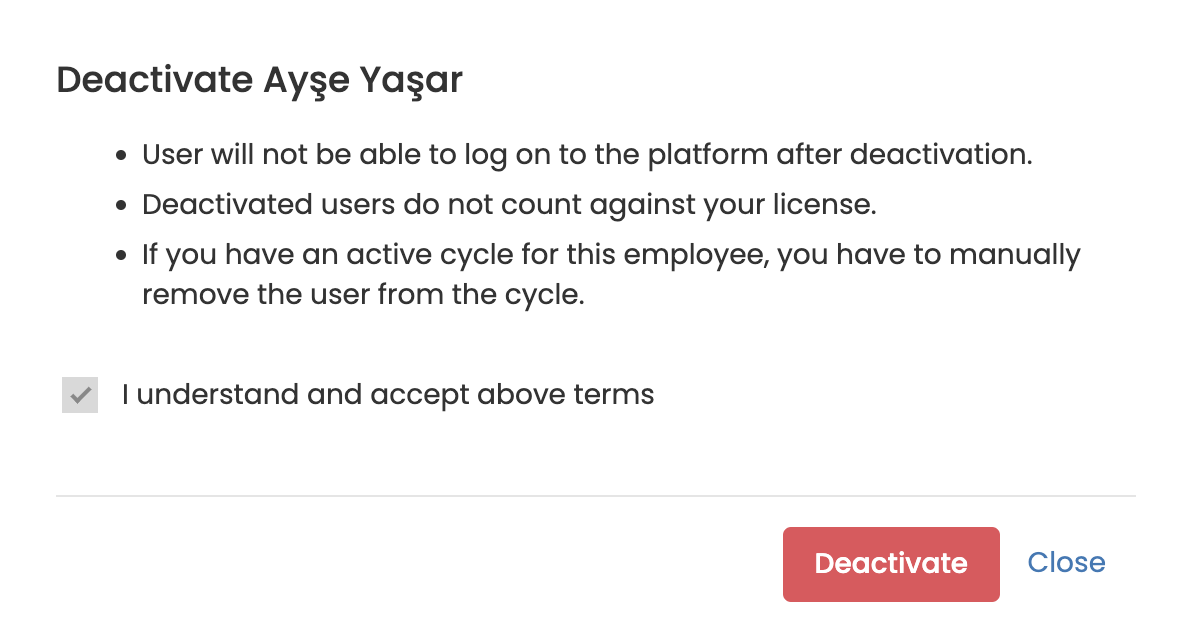
When you click on the "Deactivate" button in this window, the user account will be deactivated. Attention: If the user you deactivate is an administrator, the administrator area of the employees reporting to this administrator will be reset. You need to define the new manager of your direct reports.
Reactivating User Account
You can reactivate a deactivated user account. For this you need to follow these steps:
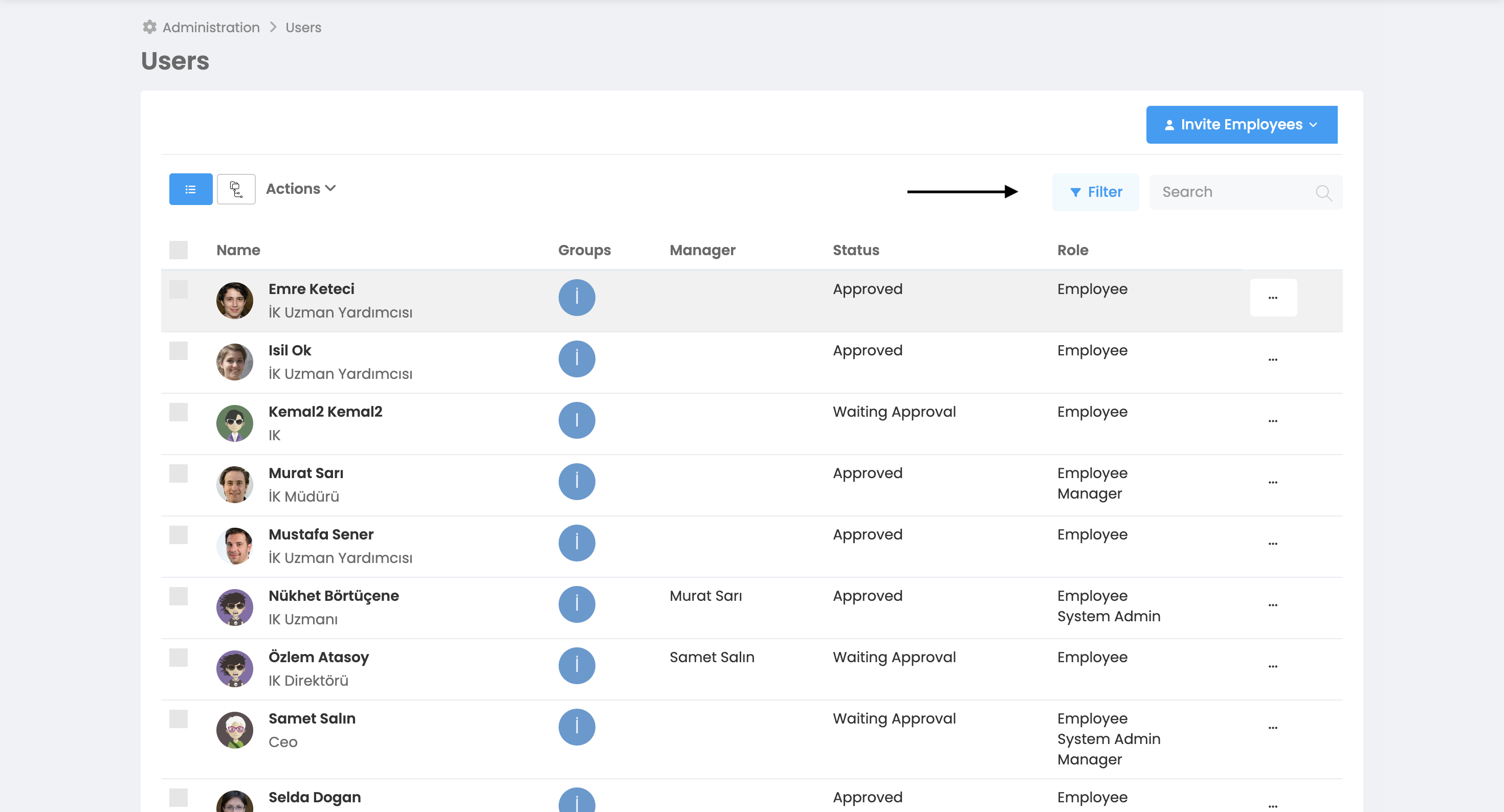
More > Administration > Employees > Filter > Deactivated > Activate
When you press the “Deactivated” button, you will see the following window.
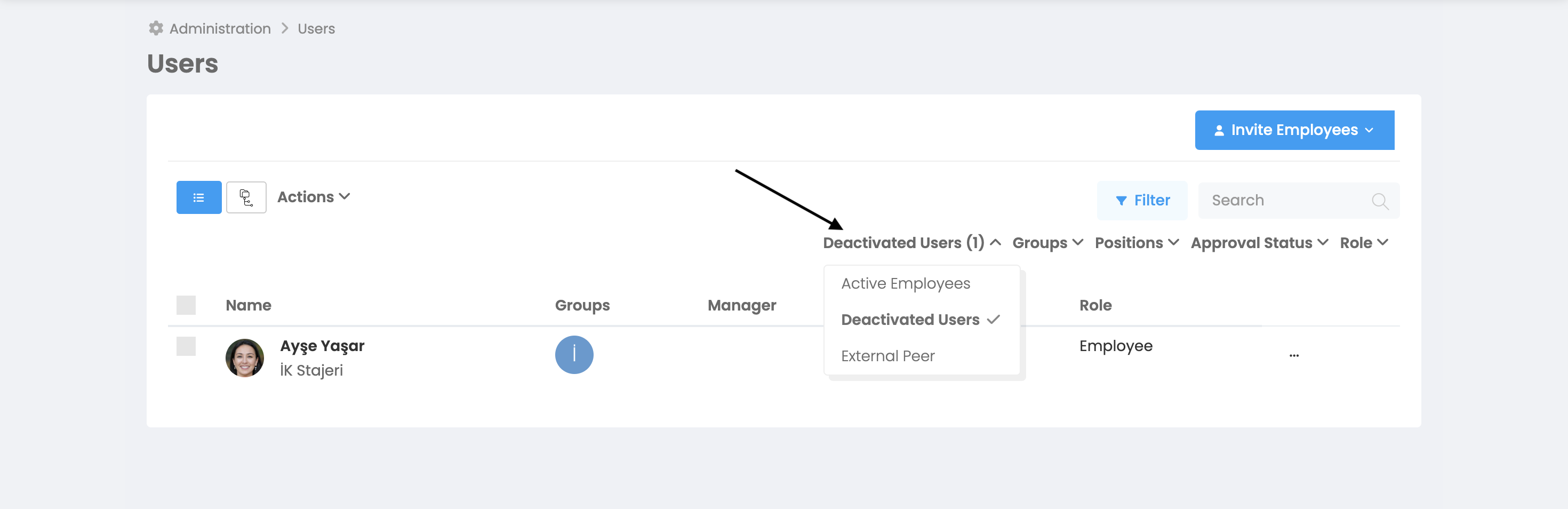
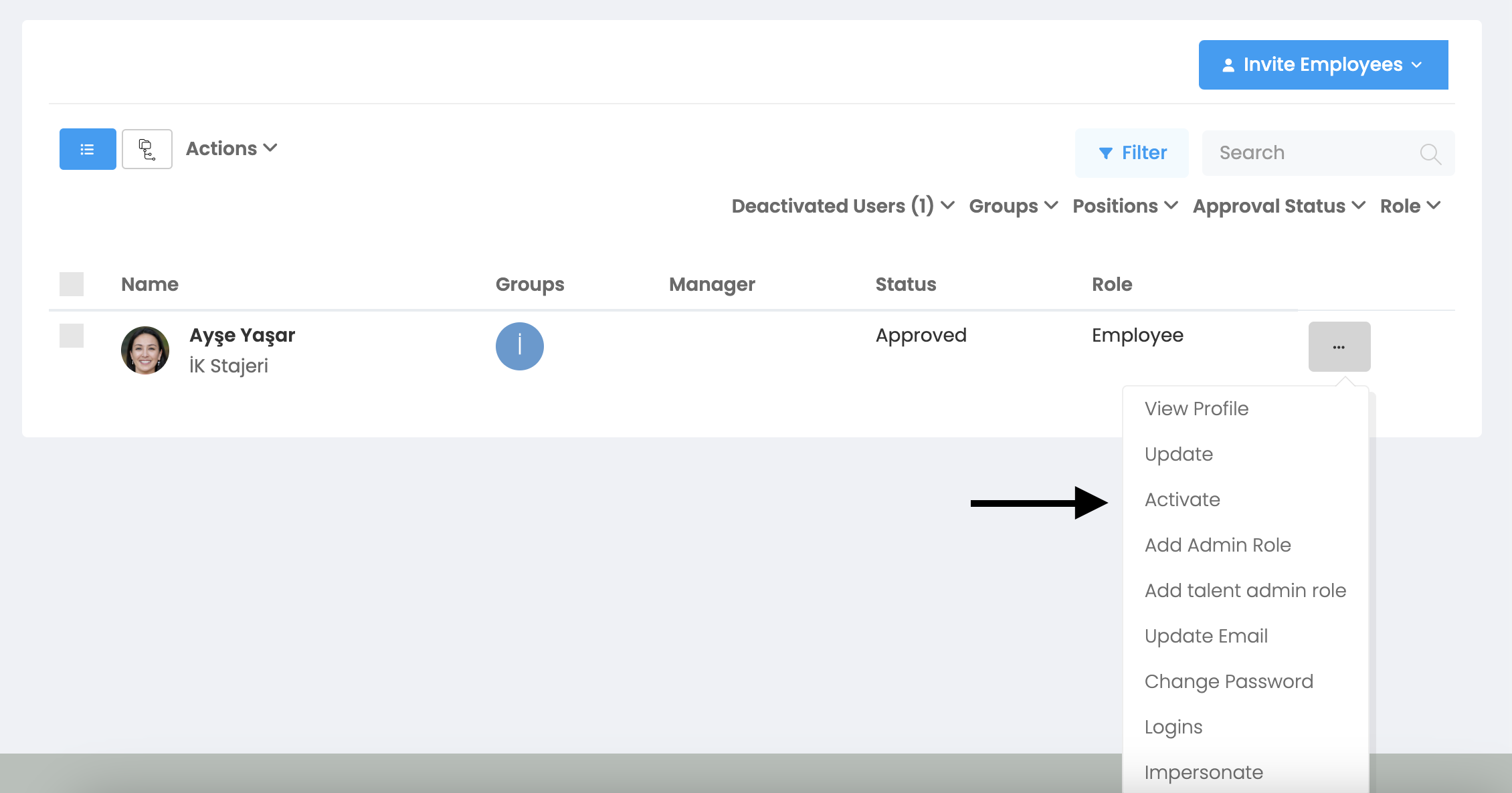
When you press the 3 dots button at the end of the line of the person you want to activate and then the "Activate" button, the user account will be activated again. After activation, you need to check the user's information and make sure it is correct. The activated employee is not automatically added to an active evaluation in their account. To do this, you need to add the person to the period using the period settings.