
To activate users, you need to send invitations to users who are installed in the system and have not activated their accounts. So how do we do this?
Note: This method is valid if standard e-mail is selected in the session login settings. If you have activated SSO management for user logins, please follow this link
More > Management > Employees
On the page you can see that there is a box at the beginning of each user row. You can send a mass invitation by clicking on these boxes and then clicking on the "Send Invite" option at the top.
As a result of this process, a link is sent to the users' e-mail address. By clicking on this link, they create their password and it is activated once it is confirmed. The link sent is valid for 1 day. Invitations must then be sent again to users who wish to confirm.
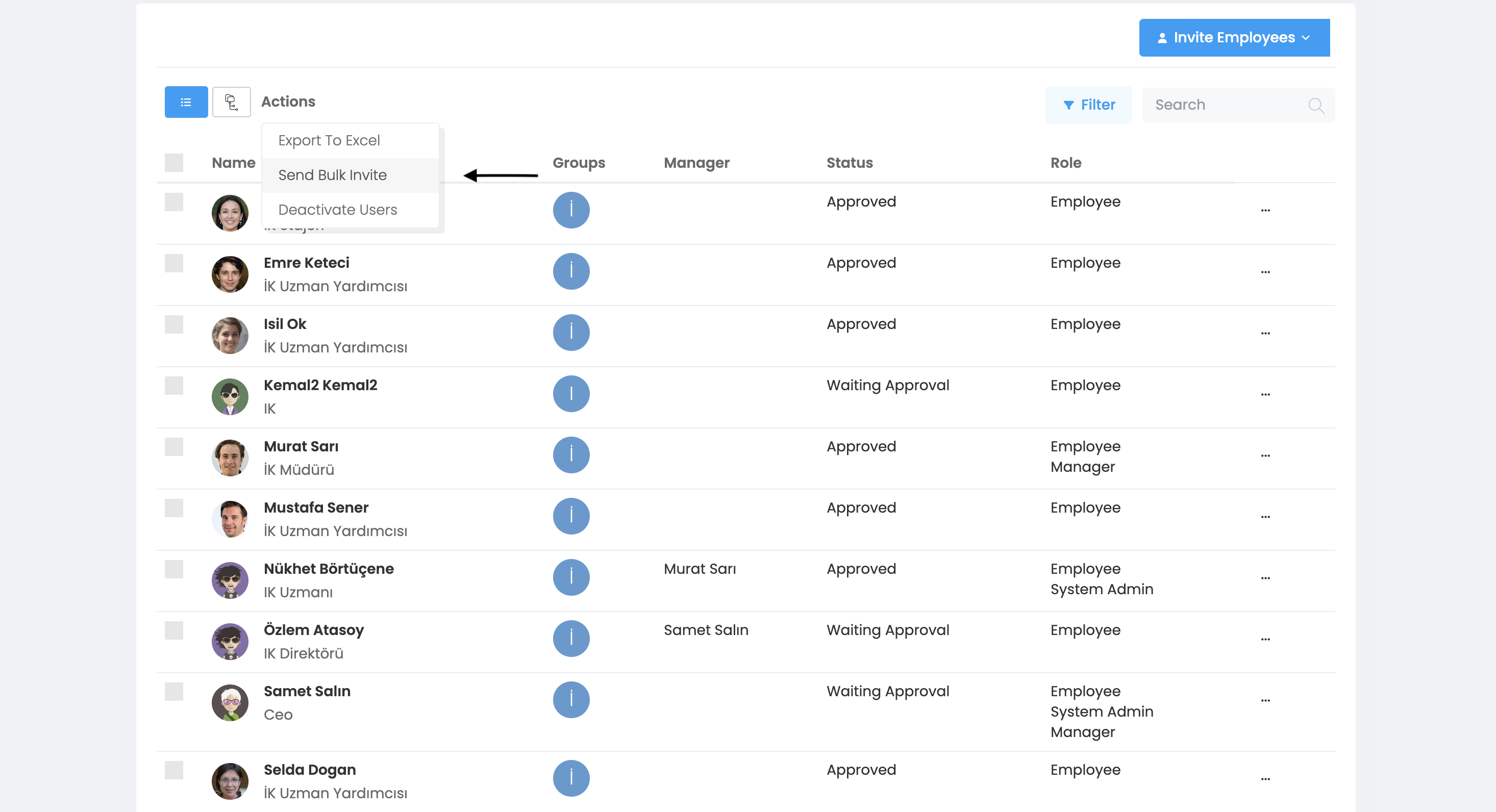
As users accept the invitation and activate their accounts, the information in the "status" column will be marked as "Approved". However, you will see that some users do not respond to this invitation and do not activate their accounts. For these users, "Pending Approval" will appear in the status column.
You can also send individual invitations to these people who have the "Awaiting Approval" status. You can perform this operation by clicking on the "Send Invitation" option when you click on the three dots button to the right of the employee line.
Feedback4e tracks the user's approval status, which will be either "Pending Approval" or "Approved". You can check the status on the employee listing page.