
To create individual objectives;
All employees participating in the OKR cycle can add individual objectives.
You need to follow these steps:
1. Objectives >
2. Create Objective > Individual

When you click on the create objective button, the following window will open.
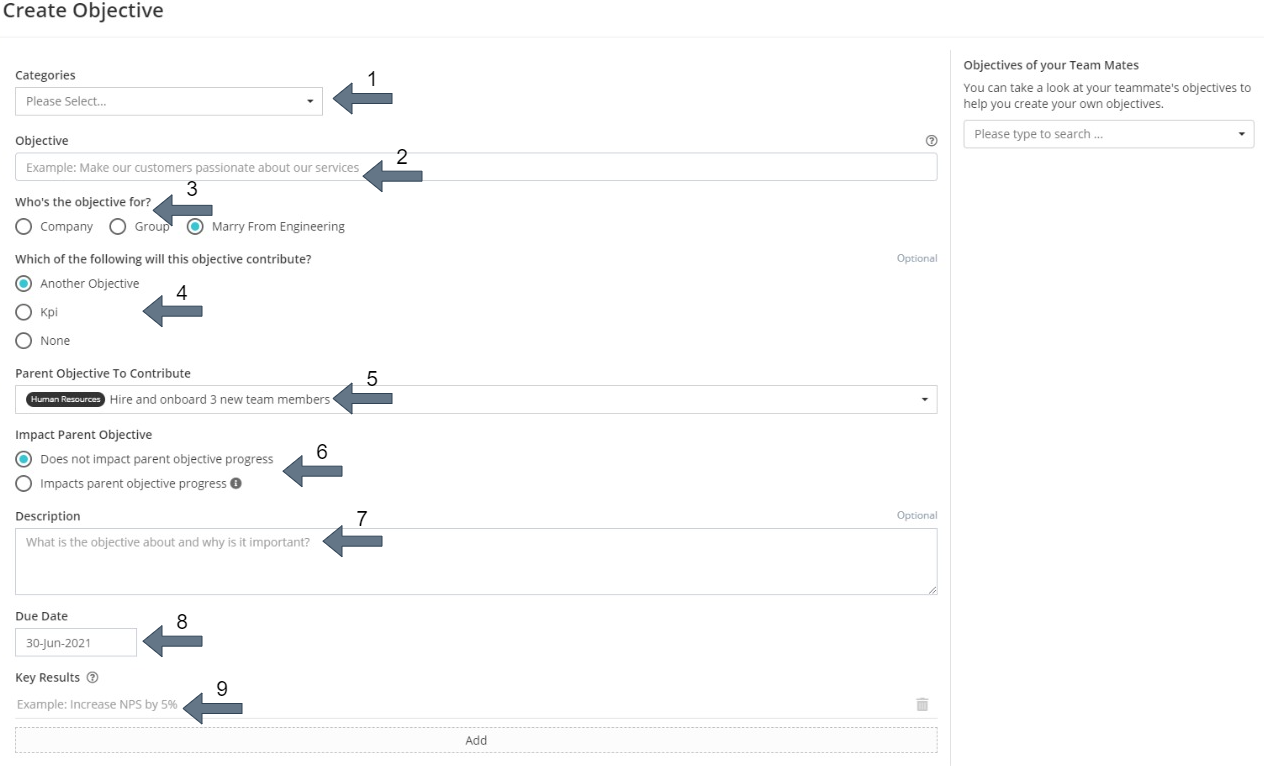
In the window that opens, you need to fill in the required fields to create an object. It is written next to them which fields are optional and which are mandatory.
1. Categories
This is the field where you can select one of the categories you defined when creating the cycle.
2. Objective
This is the area where you should write what your objective is.
3. Who is the objective for?
This is the field where you need to select the audience that is responsible for the objective. (Company, Group, Individual)
4. Which of the following will this objective contribute?
You can choose a goal or KPI that the target will contribute to. It doesn't have to depend on one, you can also use the "None" option.
5. Select the parent objective to contribute to
The objective you will associate can be a company objective, another group objective, or an individual objective. The system does not restrict the objective you define with which other objective you can associate it with.
6. Impact on Parent Objective
If the objective contributes to another objective, you must decide whether it will affect the progress of the contributed objective. In this case, the progress in your objective will contribute to the progress in the parent objective you associate with in the same proportion as a KR of the parent objective.
7. Description
Space where you can give a brief description of the objective and its importance. This part is optional, you don't have to explain if you think the objective is clear enough.
8. Due Date
It allows you to set the objective's due date.
9. Key Results
You can create the key results for the objectives you set here. It is mandatory to enter at least 1 key result criterion for each objective.
Frequently Asked Questions
To see the individual objectives of your teammates, simply click on the magnifying glass icon next to the teammates label on the left panel and select or search for the name of the friend you want to see. Only employees who participated in that objective cycle are listed in this list. If you do not see your friend's name, you can assume that he or she was not included in the objective management process at that time.
By Whom Can It Be Created?
- Admin users
- The employee herself/himself
- A senior manager
- Created by the employee's top managers at the organizational level
Check-ins are made by admin, manager and employee. If the employee wishes, he/she can assign key result based on his/her individual objectives to another employee. In this case, the employee who is assigned a key result can check-in to this key result for which he or she is responsible.
The transparency of individual objectives can be adjusted with different setups than cycle settings.
- Transparent → All individual objectives are transparent. The employee does not have the right to choose whether the objective is confidential or transparent.
- Hidden → All individual objectives are hidden. The employee does not have the right to choose whether the objective is confidential or transparent.
- Visibility Managed By Objective Owner → When creating the objective, the employee decides whether it will be private or not. Private objectives can be viewed by the employee's superiors. However, it cannot be viewed by other colleagues.
If it is transparent, other employees can comment on individual objectives, key results and check-ins and keep track of key results.