
Add Task
You can assign tasks under key results and objectives. These tasks may be projects or tasks that you undertake to achieve your objective. Tasks must be paired with a objective or key result.
You can add new tasks, delete existing ones and make updates throughout the cycle. Just like the key result, you can save your progress by checking in to the tasks. You can talk about task-related issues with your other responsible colleagues in the comments section.
So how do we add tasks?
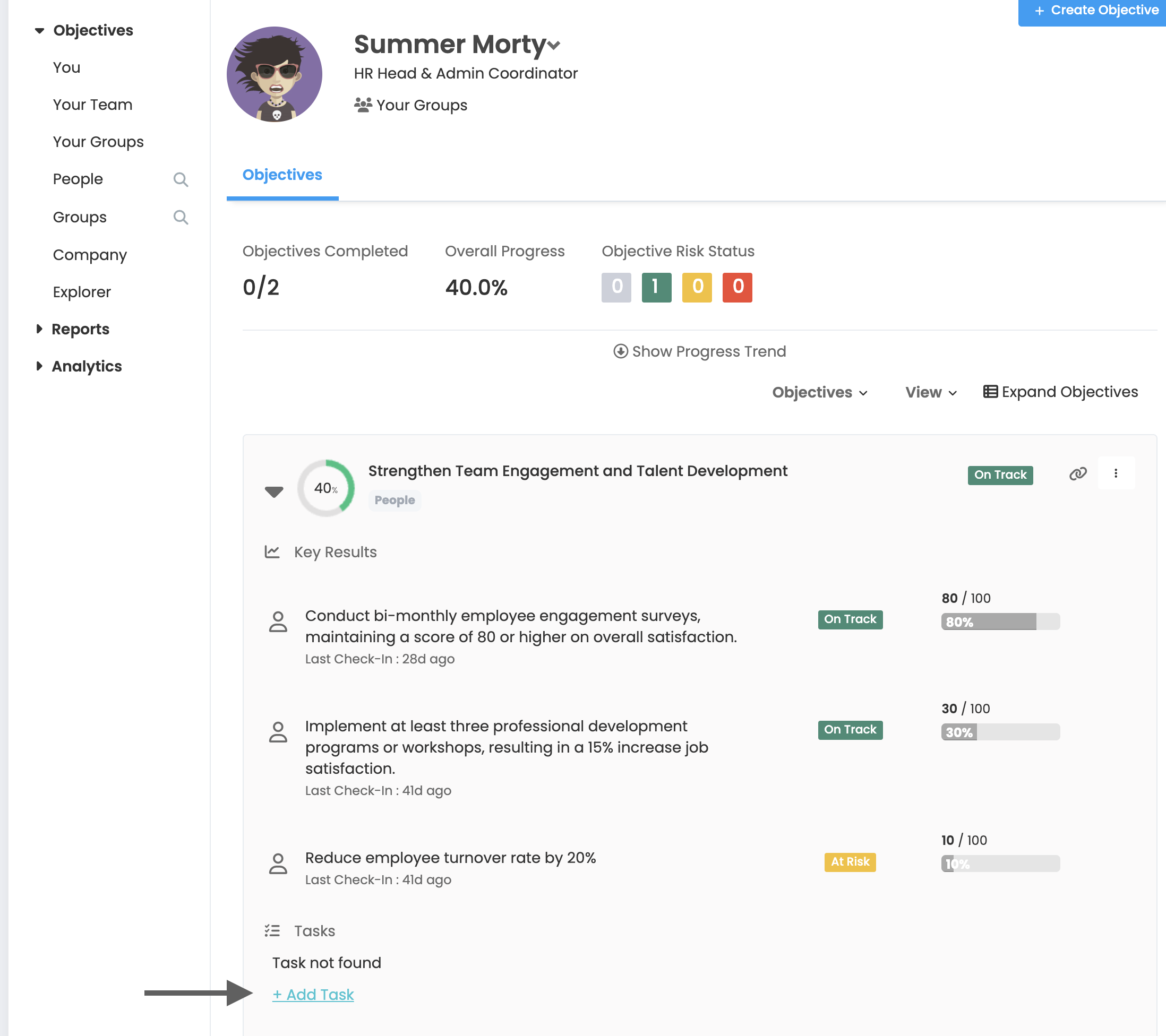
On the objectives screen, you need to click on the "+Add Task" button in the area shown in the image. A window will open where you can fill in the necessary information to create a task.
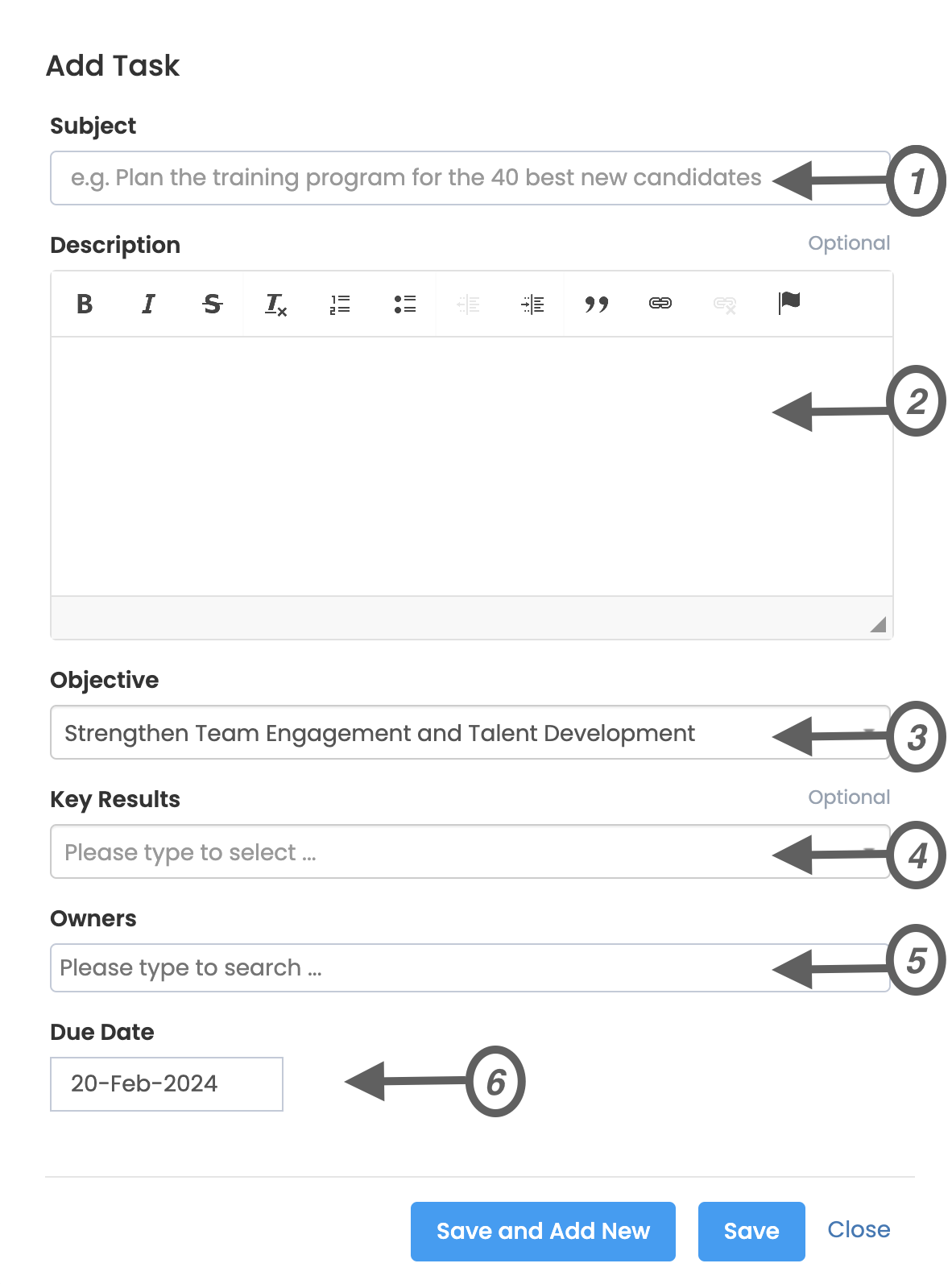
1. Subject
This is the area where you can write what the subject of the task is.
2. Description
This is the area where you can explain and detail the content of the task. If you think you have explained the topic sufficiently, you can leave it blank.
3. Objective
Area where you can choose which objective will be a subtask.
4. Key Results
You can also define tasks under key results. This option is optional, you can leave it blank if you wish.
5. Owners
The area where you can assign responsibility for the task. You need to select who you want to be responsible for the task by typing the name of that employee. You can choose any colleague for this space, horizontally or vertically. The system does not impose any restrictions on you. If the task is recorded, an information message is sent to the responsible employees regarding the definition of the task.
6. Due Date
You can set a due date for the task. You need to select a date from the calendar that opens.
Task Update
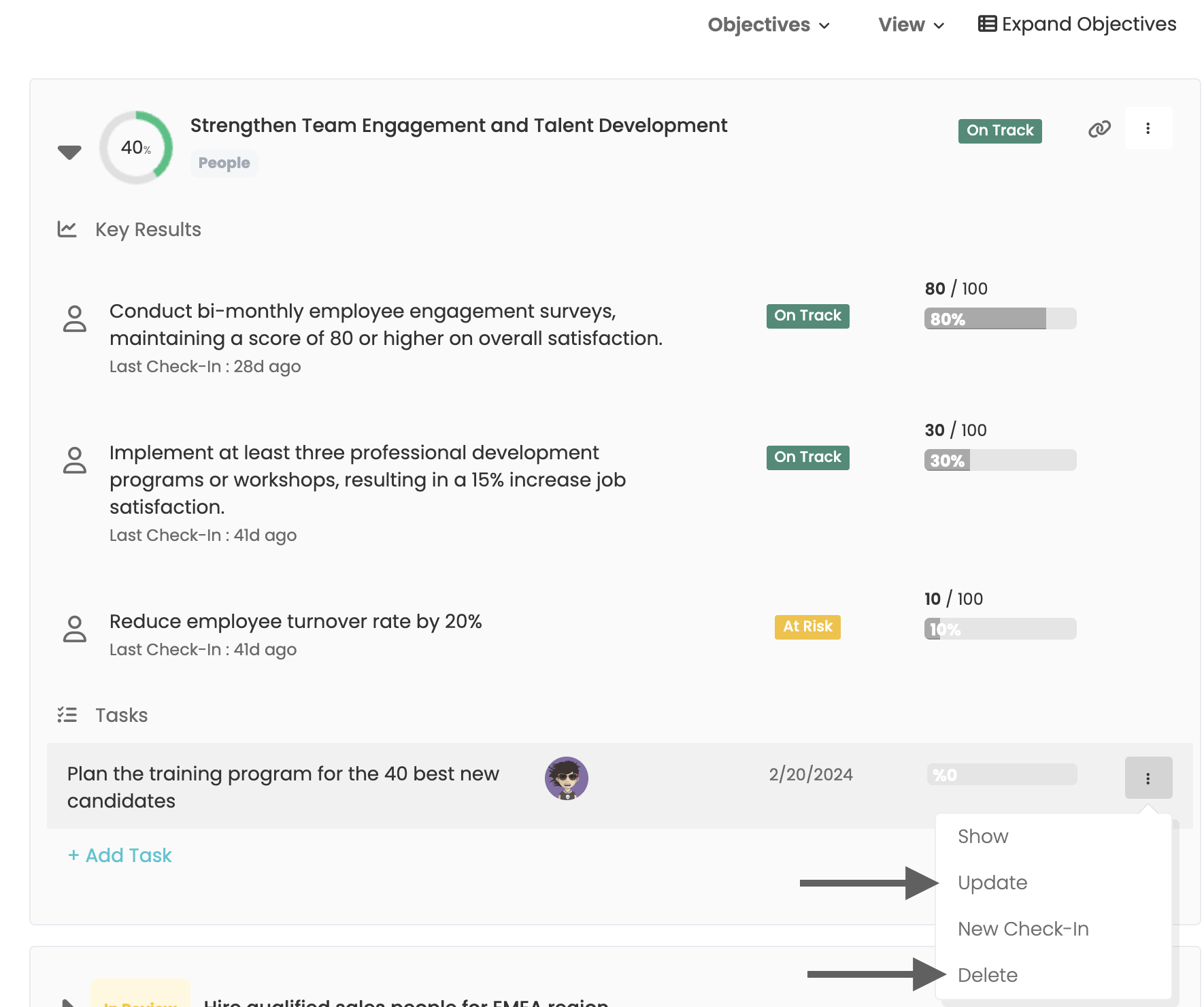
If you think there is an error in a task you created or you need to update it, you can do this by following the steps below.
Task Check-In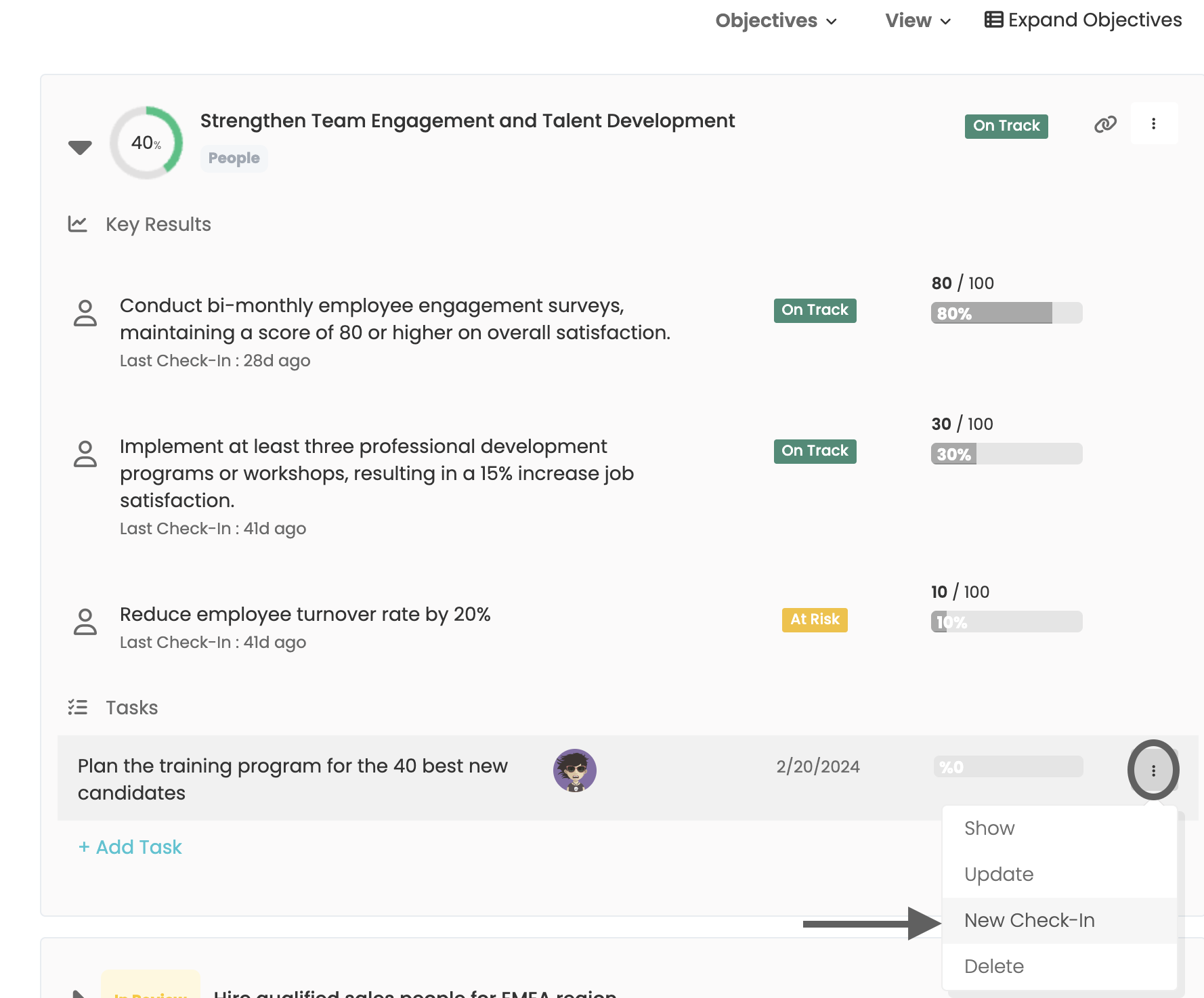
When creating a check-in for a task, you need to press the three dots button at the end of the task line and then the "New Check-In" link.
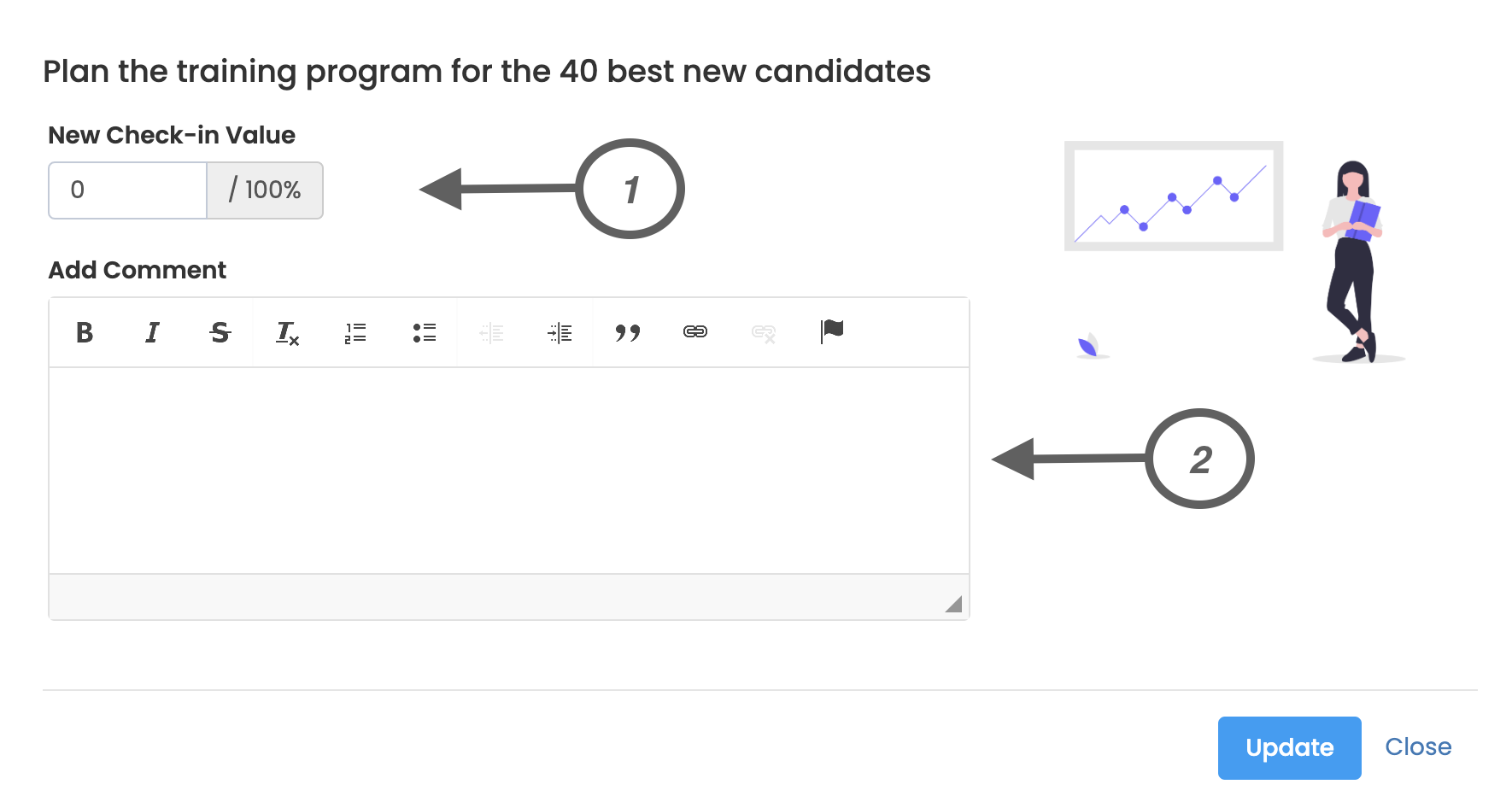
You will see the following fields in the window that opens.
1. New Check-In Value
You must fill out this section to report the progress of your task.
2. Add Comment
You can write any comments you want to add about your check-in in this section.