
The first step in using the system is to load employees into the system. You can easily upload it in bulk via excel format. You can find the sample Excel file at the end of the article. So how do we do this?
More > Administration > Employees > Add Employee > Bulk Import > Sample Template File
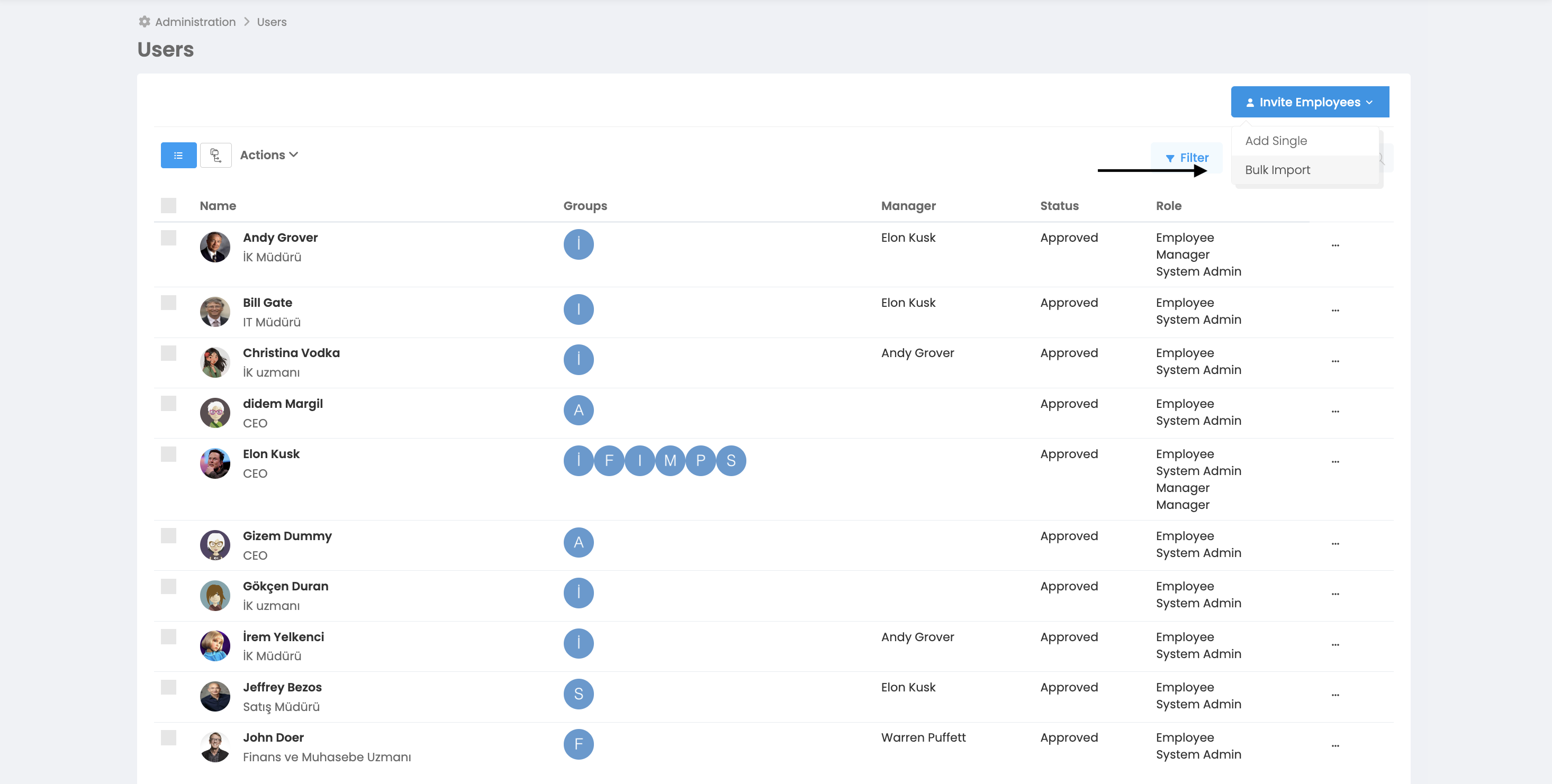
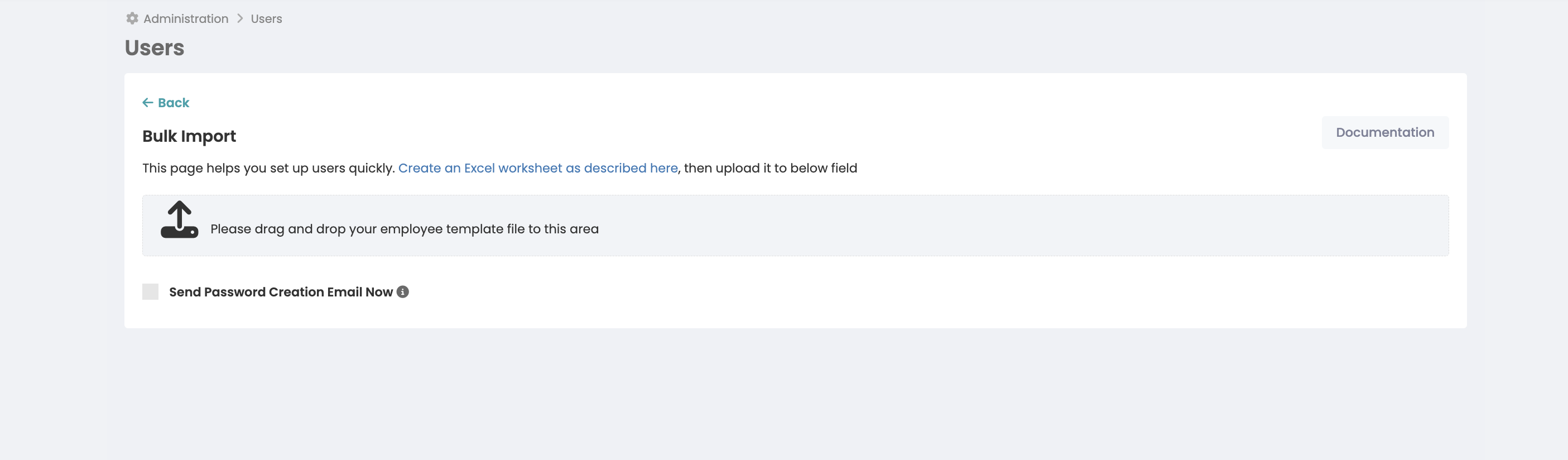
You will find the following columns in the sample template excel file. These columns represent the following fields and are divided into mandatory and optional.
Mandatory Fields
Name
Last name
Position
Group
Note: You can enter more than one value in the Group field. To do this, you need to define the groups the employee is in by separating them with commas. Click to learn what a group is and how it is defined. If you want to reflect your organizational hierarchy, you'll also need to enter all parent groups to which the employee belongs. For example, for a user working in the Alim event team, you should define it as "Human Resources Department, Ise Alim Event Team", make sure there are no spaces around the commas.
Optional Fields
Manager E-Mail (leave this field blank if the employee does not have a manager)
Registration number
Hrbp Group
Title
Date of Start of Work
Matrix Administrator E-Mail
Language (en-Tr or en-US)
When the Excel file is filled in and uploaded to the system, an automatic invitation e-mail is sent to users' e-mail addresses to activate their accounts and create their passwords. Since the link is valid for one day, a re-invitation must be sent if the user account is not activated.
How to Track Upload Status?
Once the upload request is received, it is placed in a queue by Feedback4e. You can expect the installation to start in about 5 minutes. To track the upload status
Go to More > Administration > Integrations > Background Tasks page
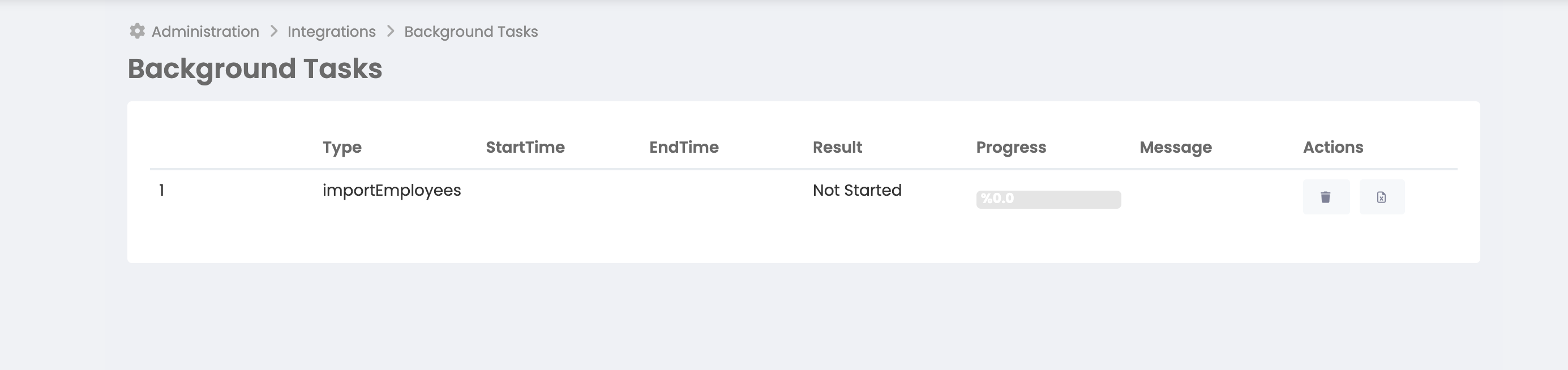
You can follow the start status and result of the installation process from this page. If you wish, you can cancel the process if the installation has not started.
To send invitations when creating users
More > Administration > Employees > Add Employee > Add Bulk
On the page, the "Send Password Creation Message Now" box is checked. If you just want to test the system and do not want to send messages to users in the meantime, do not check the "Send Password Creation Message Now" box.
Password creation messages sent will be valid for 1 day. At the end of this period, if users do not confirm their accounts and create their passwords, they will encounter an error message. In this case, you need to resend the message.
The status of users who have not created their password in the employee list will be listed as pending approval. Unapproved users are not active in the system. For example, you cannot give feedback to these users.
If you have SSO enabled, a password creation message will not be sent to users during bulk upload. After installation, users will be listed as awaiting approval. These users will only be activated after you confirm and will be able to log in to the platform via SSO.
How is my license affected when a new user is added?
Each user counts as a single license as soon as they are added to your account. You will not be allowed to add more users than your allowed license limit. To increase your license limit, contact support@feedback4e.com.
Note that only active users are charged, so when an employee leaves, be sure to deactivate their account. When disabled, the user will not be able to log into their account, but their data will be retained.
Why should every user have a unique email address?
Each user account must be assigned to a unique email address that does not exist in your company account. This includes archived/inactive users. If you can't add a new user due to an "already existing email address", make sure no active or inactive employees are using that email address. You can reactivate the deactivated user or change their email address.