
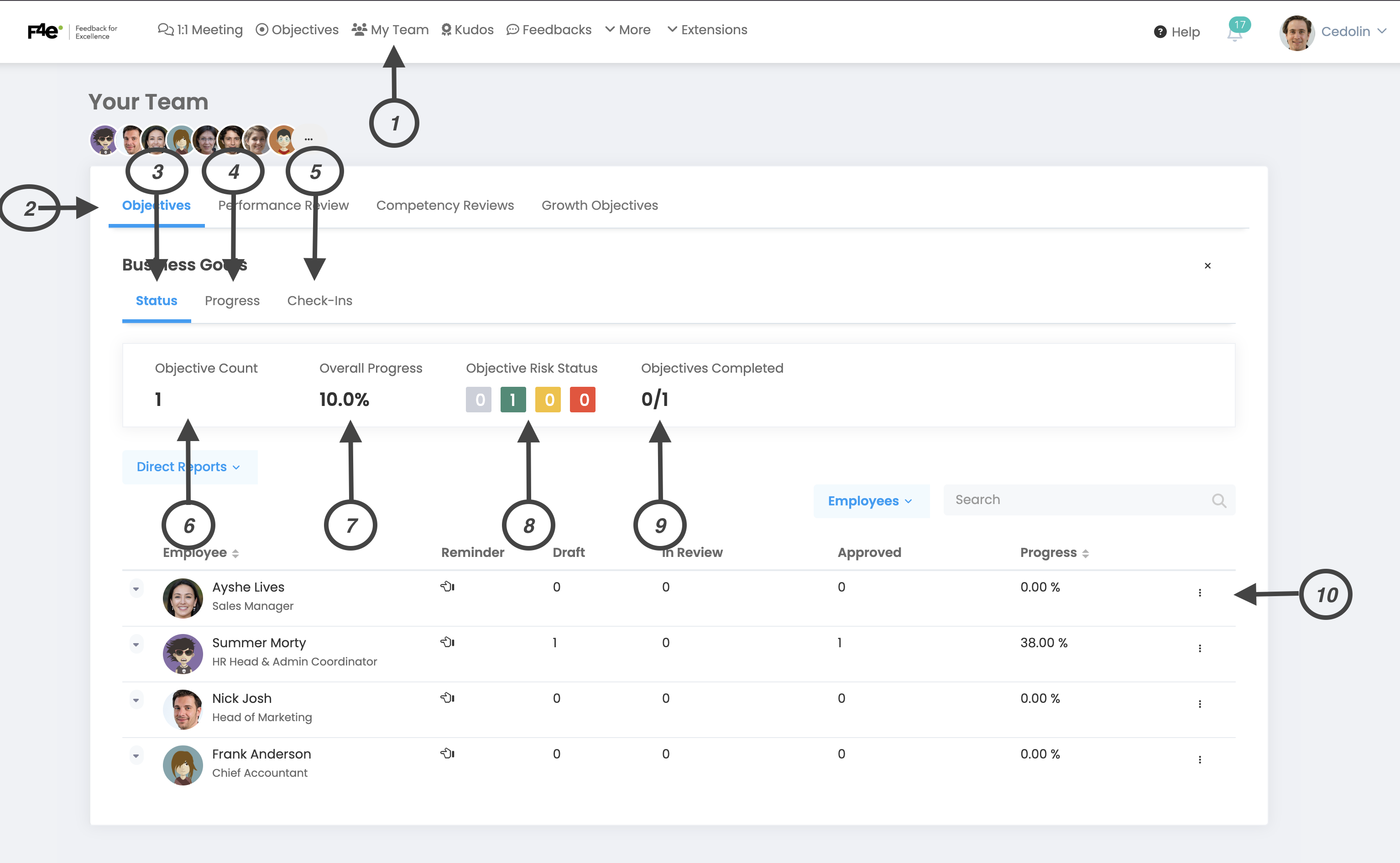
If you are an administrator, you will see the “My Team” link in the top menu. In the My Team window, you can view the employees reporting to you, your teams, and the information of the teams reporting to you during the periods you were involved. Now I will tell you how you can enter this window and what the contents mean.
1. My Team
This is the first step required for the window. You need to click on the “My Team” button at the top of the page.
2. Business Goals
Afterwards, you need to select the “Business Goals” window.
3. Status
Status allows you to view the general status of subordinate employees, groups and teams. The screen you will see is as in the photo above.
4. Progress
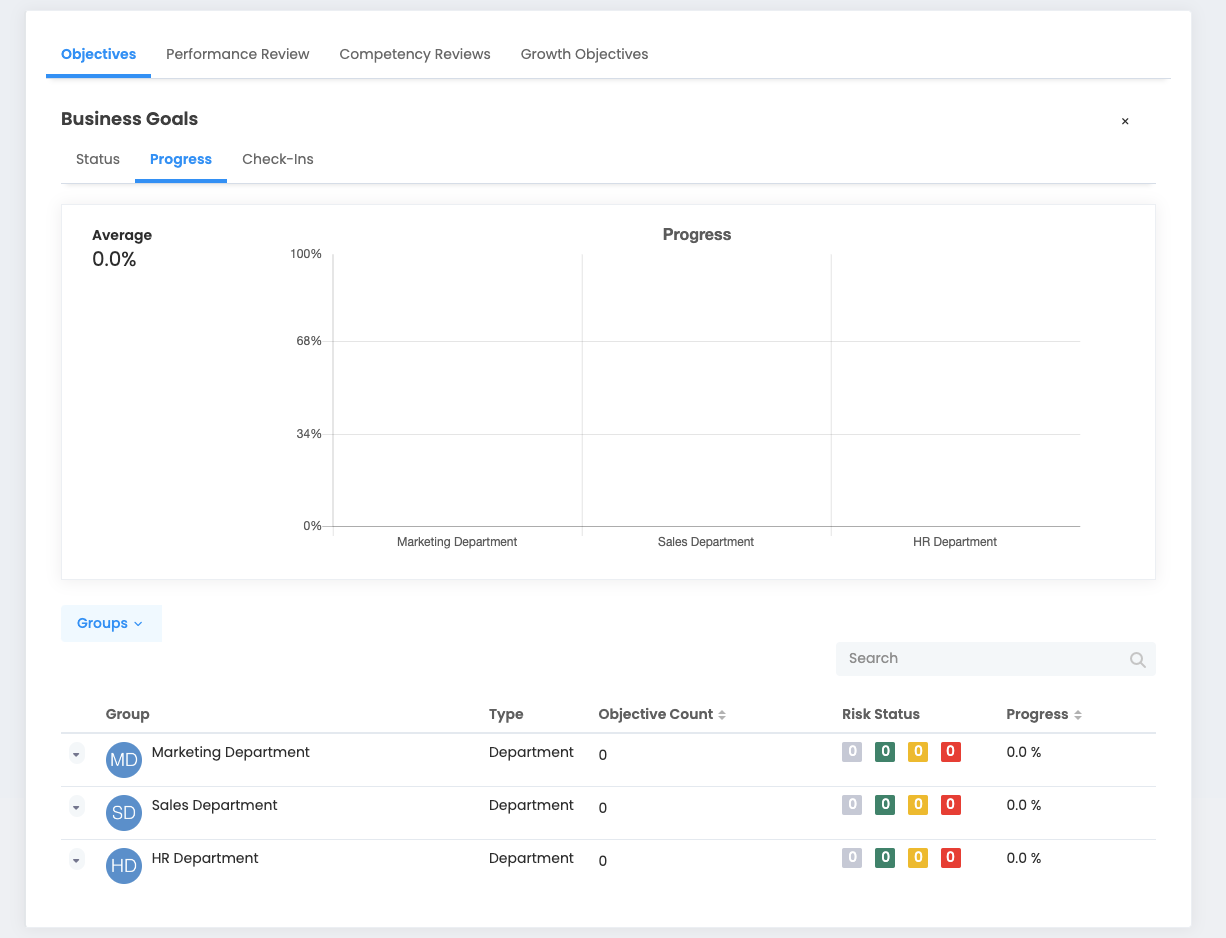
Progress allows you to view the individual progress of your employees, groups and teams. You can see the screen you will see in the photo above.
5. Check-In
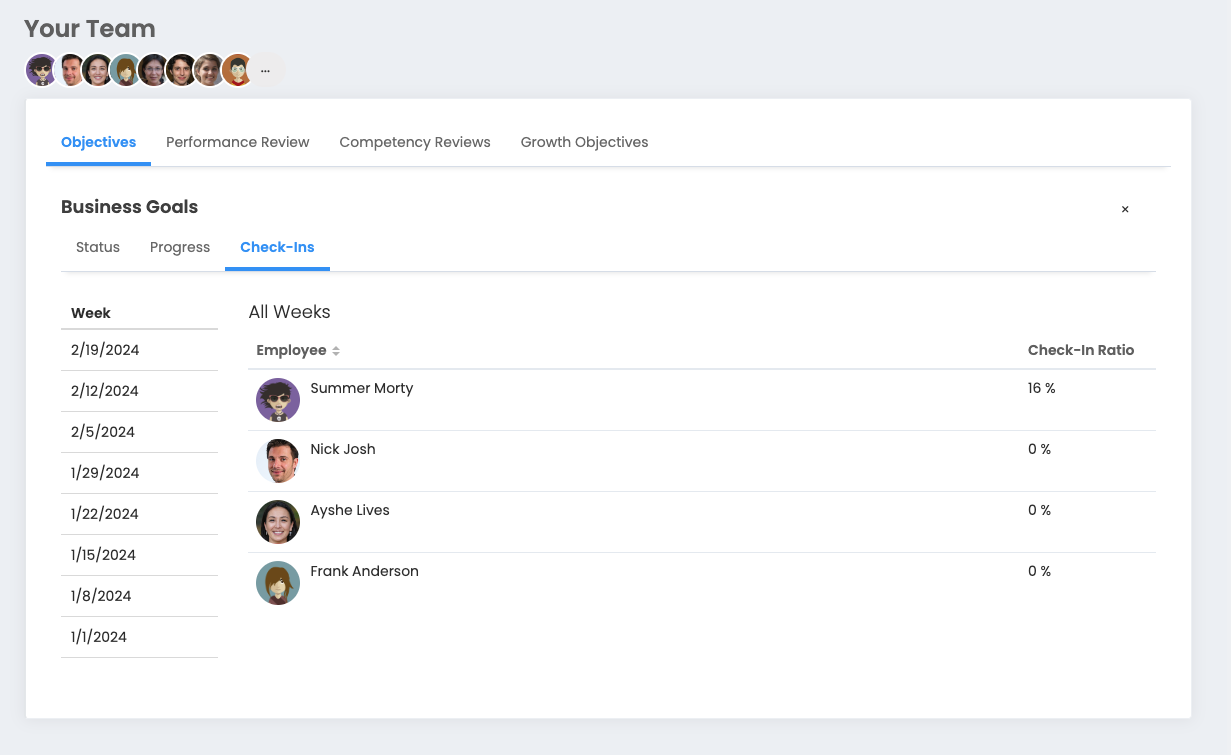
Check-In allows you to view the check-in rates of your subordinate employees on a weekly or all-week basis. You can see the screen you will see in the photo above.
6. Number of Targets
Displays the total number of targets for the audience you're viewing.
7. Overall Progress
You can see the percentage progress of the goals of the audience you are viewing. Overall progress is the average of the progress of the goals of the audience you're viewing.
8. Objective Risk Status
Gray: Shows the number of unchecked destinations.
Green: Indicates that goal progress is on track.
Yellow: Indicates that goal progress is risky.
Red: Indicates that target progress is deviated.
9. Objectives Completed
It shows the ratio of 100% completed goals to the total goals of the audience you're viewing.
10. Add Target
Allows you to assign targets. You can assign targets to any group or employee you want. You need to click on the “+” button at the end of the line and create a target.
11. Direct Reports
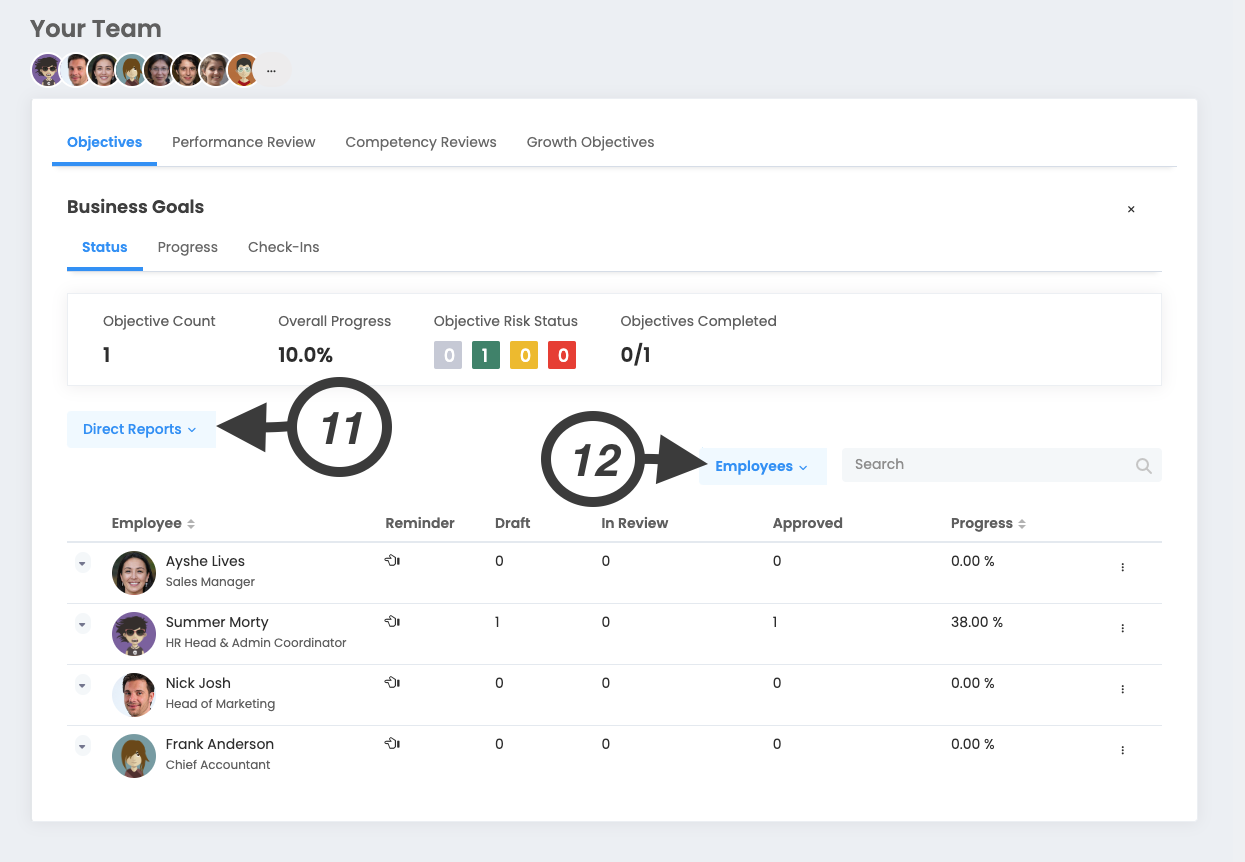
You can change the audience you want to display from this button. When you click on the button, you will be presented with the “Direct Reports”, “Groups” and “Indirect Reports” options you belong to.
12. Employees
You can view your employees' goals and success criteria separately. When you click on the button, you will be presented with the options “Objectives”, “Key Results” and “Employees”. The “Direct Reports” option shows the total progress and goal numbers of employees in the model displayed above. “Objectives” and “Direct Reports ” options allow you to view these options separately.
Changing Cycle
You can also view different periods in the My Team section. If you want to change the period you are viewing, you must follow the steps below.
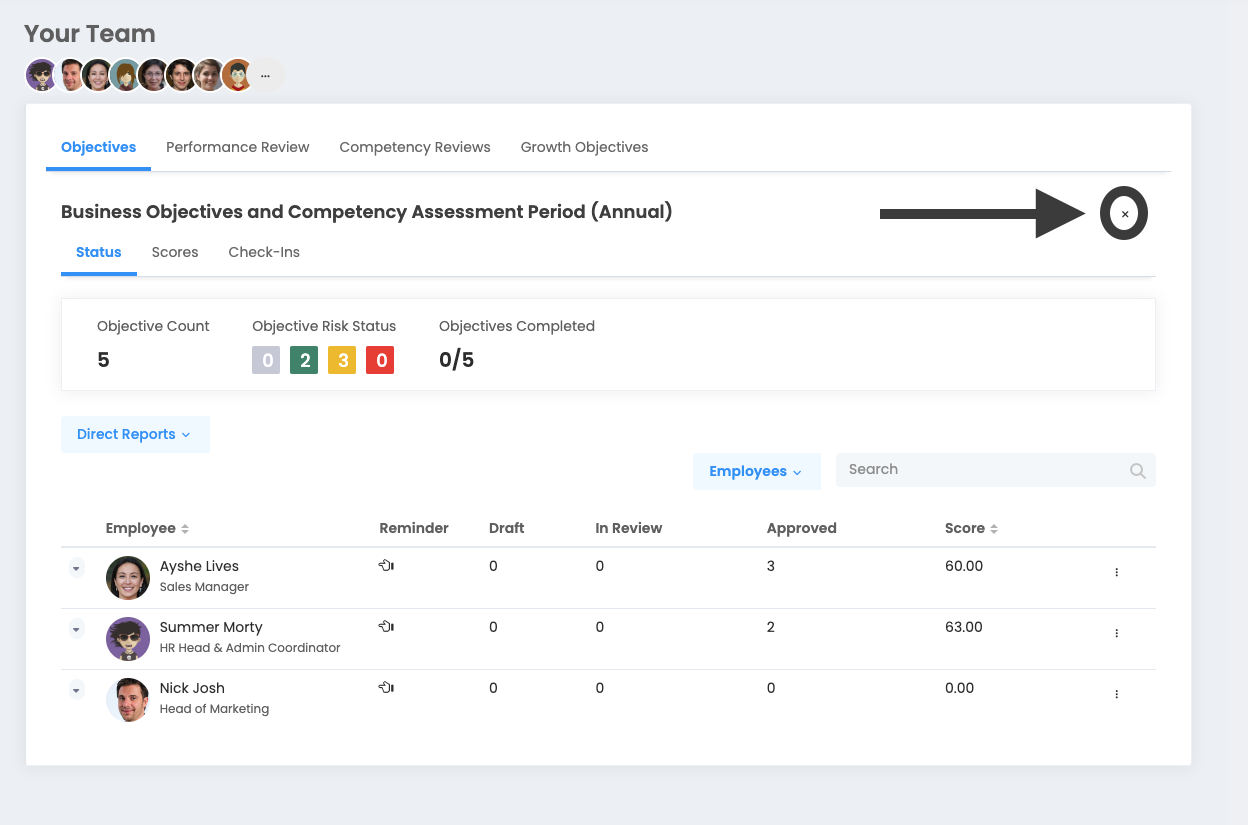
When you click on the “X” button in the photo, other cycles will be displayed.
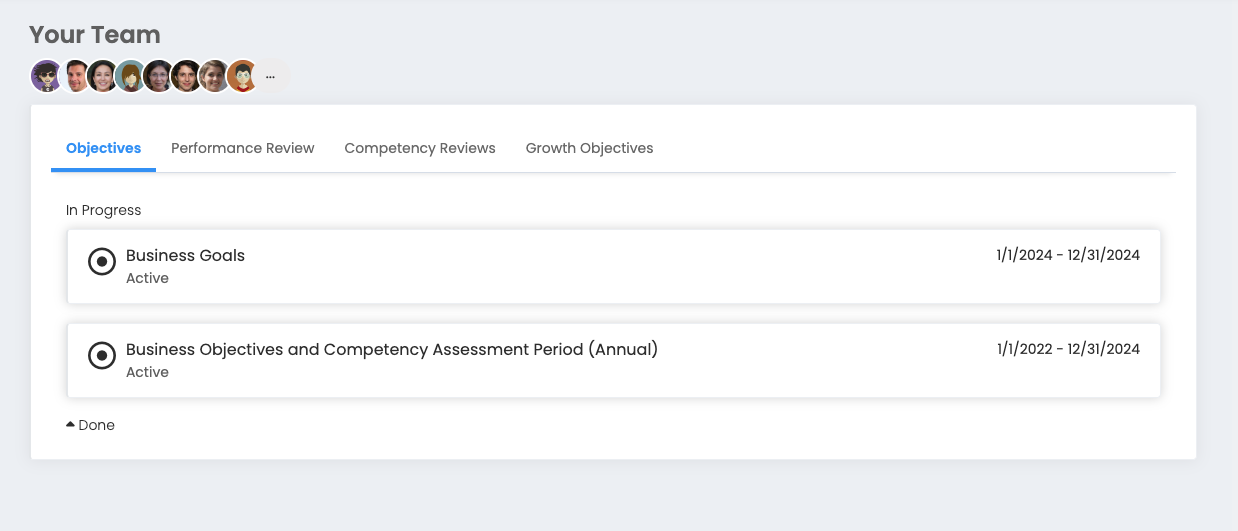
All you have to do is select the cycle you want to view from this section.